Introduction
Universal Inbox is a productivity solution that streamlines your digital workflow by centralizing notifications and tasks from multiple tools into one manageable interface.
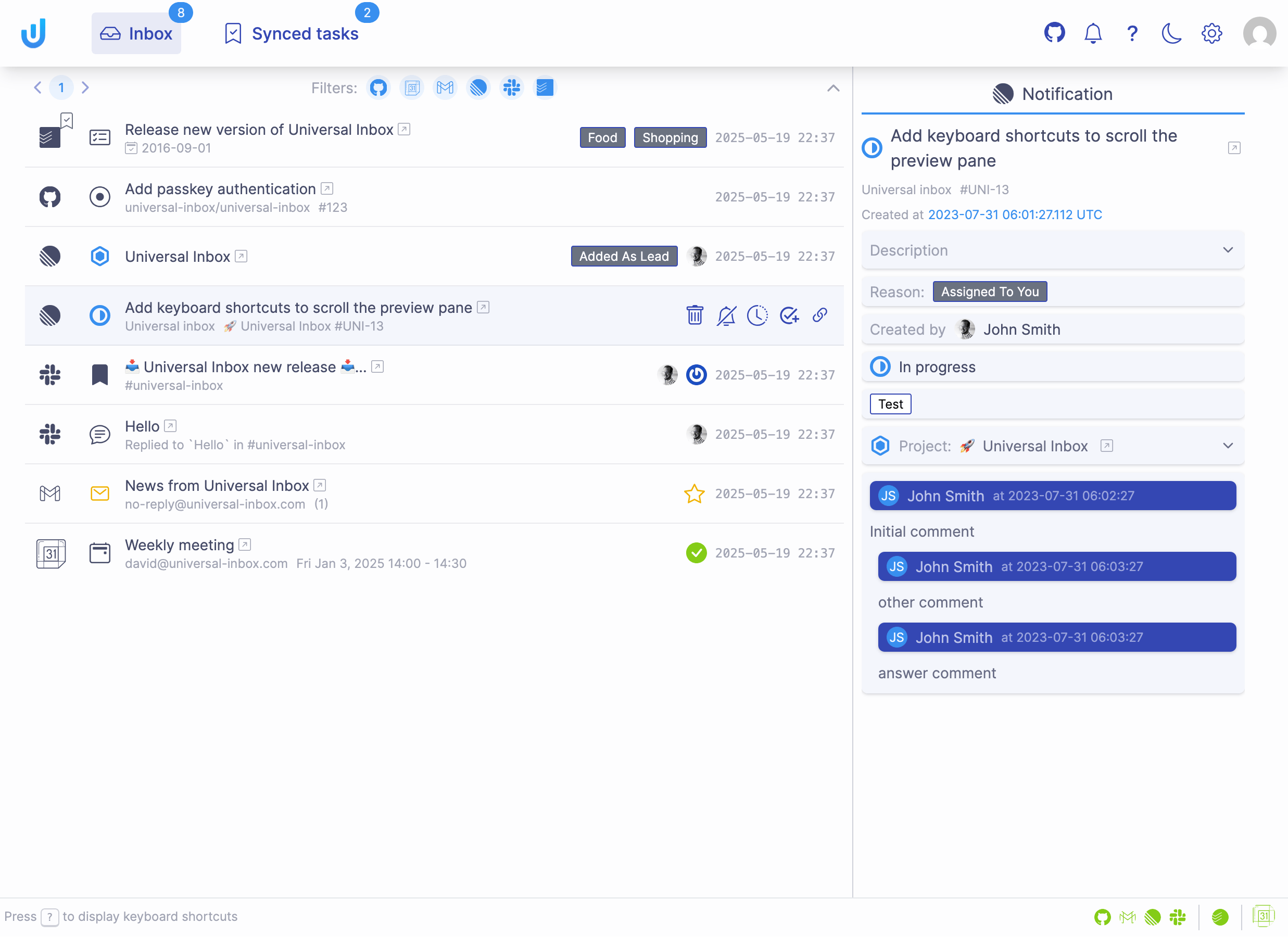
What is Universal Inbox?
Universal Inbox brings together your notifications and tasks in one powerful interface, featuring:
-
Centralized Notification Hub: Consolidates notifications from multiple tools:
- GitHub notifications
- Linear issue and project notifications
- Google Mail threads (with specific tags)
- Slack messages reacted with an emoji and direct mentions
-
Efficient Notification Management: Take immediate action on notifications:
- Delete notifications until next update
- Unsubscribe to silence future updates
- Snooze notifications for later handling
- Convert notifications into actionable tasks
- Custom actions tailored to notification types (e.g. respond to Google Calendar invitations)
-
Task Synchronization: Two-way synchronization between your task management tool and connected tools (e.g. Slack reacted messages or Linear assigned issues).
Key Benefits
- Streamlined Workflow: Eliminate the need to check multiple inboxes
- Enhanced Productivity: Transform unplanned notifications into structured tasks
- Perfect Synchronization: Maintain consistent status across all connected tools
- Flexible Integration: Works with your existing tools and workflows
Getting Started
To begin using Universal Inbox:
- Sign up on Universal Inbox
- Connect your tools
- Start managing your notifications and tasks
Ready to take control of your notifications? Head to the Quick Start Guide to begin.
Universal Inbox is actively expanding support for additional third-party tools to enhance integration capabilities.
Getting Started with Universal Inbox
Logging In to Your Account
If you already have a Universal Inbox account, log in here using the same authentication method you used when creating your account.
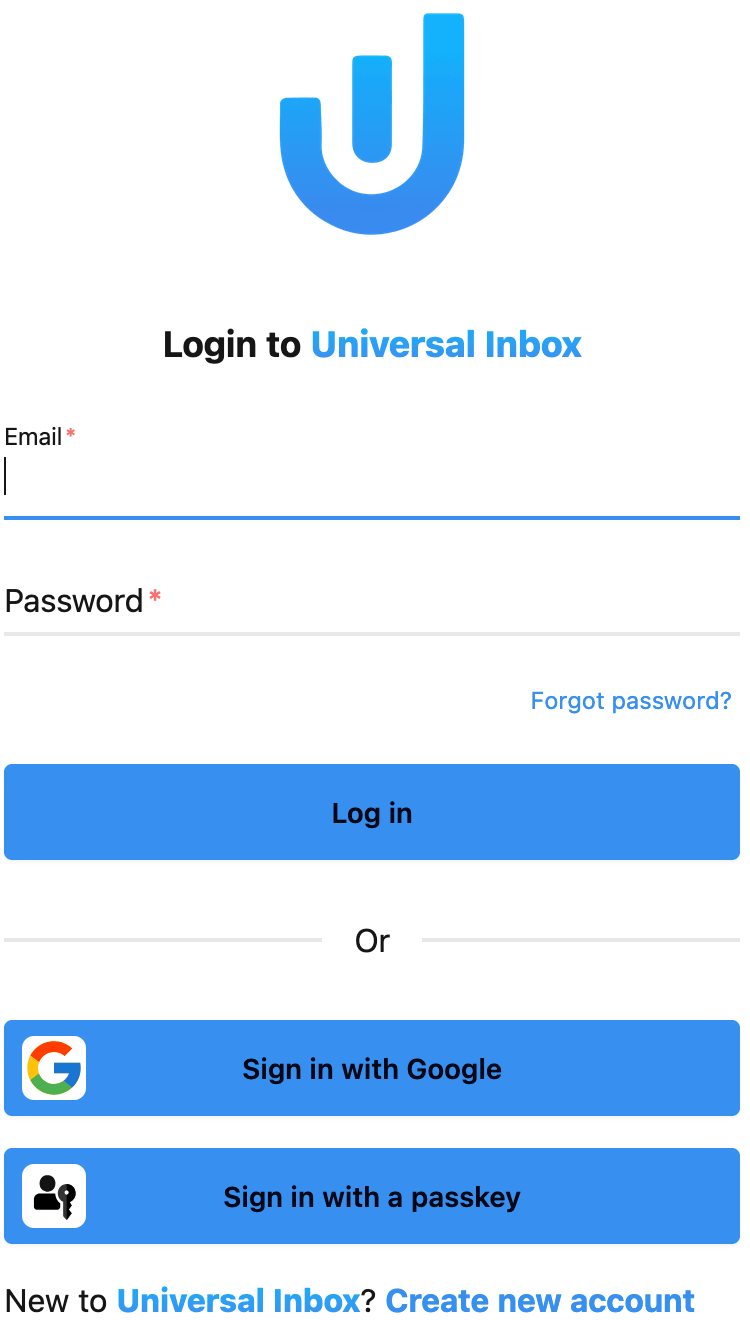
You can add multiple authentication methods to your account (e.g. password + Google + passkey) from your user profile page. See Managing Authentication Methods for details.
Creating a New Account
If you're new to Universal Inbox, click "Create a new account" from the login page.
Universal Inbox offers three secure methods to create your account. Choose the option that best suits your preferences:
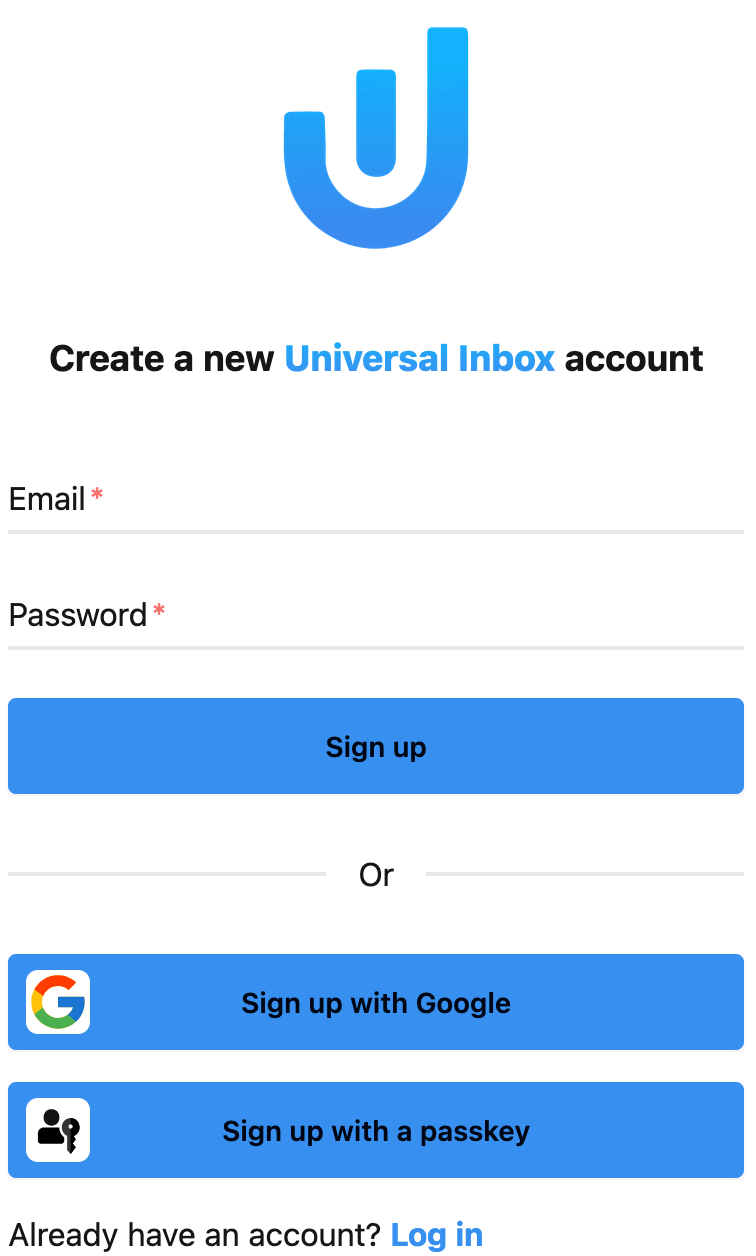
1. Email-Based Registration
Create an account with your email address:
- Enter your email address
- Create a strong password
- Click "Sign up"
You'll need to verify your email address before accessing Universal Inbox. Check your inbox for a validation link and click it to complete the registration process.
2. Sign Up with Google
Use your existing Google account for faster registration:
- Click "Sign up with Google"
- Select your Google account (or sign in if needed)
- Review and accept the permissions
3. Passkey Registration (Enhanced Security)
For passwordless authentication with enhanced security:
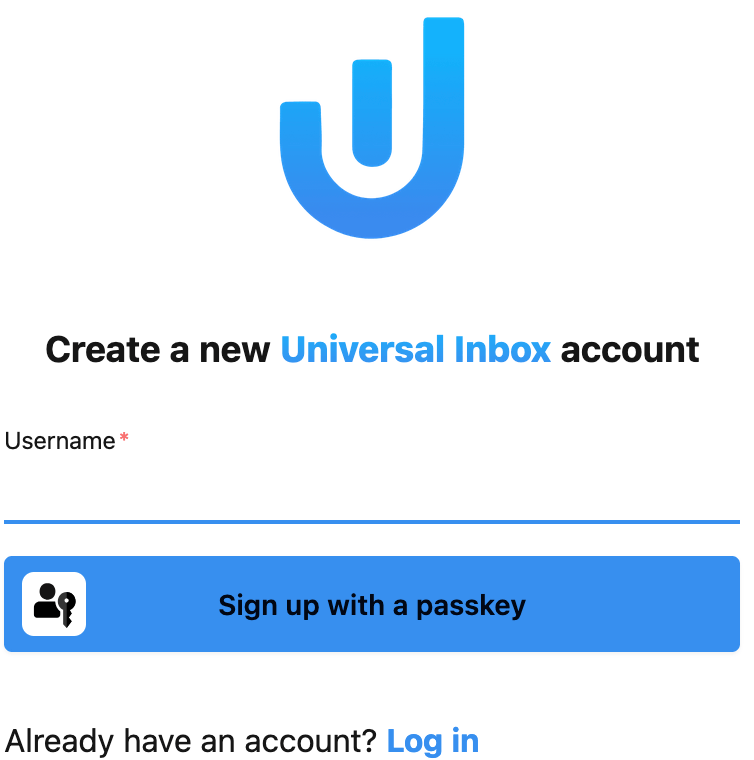
- From the login page, click "Sign up with a passkey"
- Enter a unique username
- Click "Sign up with a passkey"
- Your device will prompt you to create a passkey using one of these methods:
- Fingerprint
- Face recognition
- PIN
- Other biometric methods supported by your device
Managing Authentication Methods
Once your account is created, you can add or remove authentication methods from the Authentication methods card on your user profile page.
Adding an Authentication Method
You can add any of the following methods to your existing account:
- Password: Click "Add password" and enter a new password (minimum 6 characters)
- Google: Click "Link Google account" to associate your Google account (only available if Google authentication is enabled on the instance)
- Passkey: Click "Add passkey", enter a username, and follow your device's biometric prompt
Removing an Authentication Method
Each authentication method can be removed by clicking the delete icon next to it.
You must always keep at least one authentication method on your account. The delete button is hidden when only one method remains.
What's Next?
After successfully creating your account, you'll be guided through the process of connecting your tools and services to Universal Inbox.
Connecting Your Tools
Getting Started with Universal Inbox
To begin centralizing your notifications and tasks in Universal Inbox, you'll need to connect your preferred tools. This guide walks you through the simple connection process.
Initial Setup
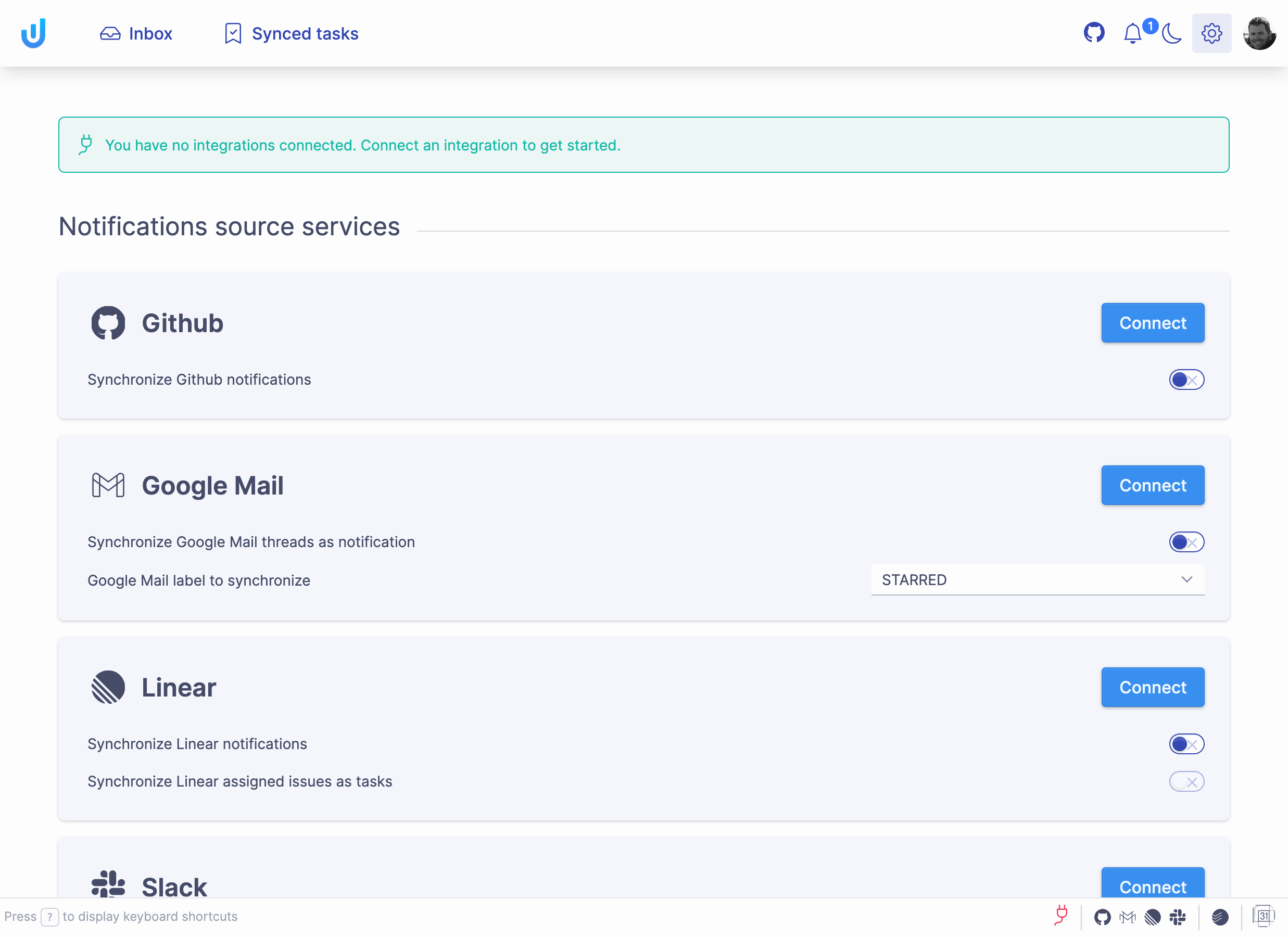
- On your first login, you'll automatically see the Settings screen
- This screen displays all available tool integrations
Connecting Tools
To connect a tool:
- Find your desired tool on the Settings screen
- Click the "Connect" button
- A new window will open showing either:
- The tool's login page (if you're not already logged in)
- An authorization request for Universal Inbox
- The window closes automatically once connection is established
Each integration uses a secure OAuth authorization flow, ensuring your credentials are never directly shared with Universal Inbox.
After connecting a tool, Universal Inbox automatically fetches notifications and displays them on your Inbox screen.
Next Steps
After connecting your tools:
- View all your notifications in the Inbox screen
- Manage synchronized tasks in the Synced Tasks screen
- Configure individual integrations in Integration Settings
The Inbox Screen
Overview
The Inbox screen is your central hub for managing all synchronized notifications from your connected tools.
Notifications List (Left Pane)
Each notification entry includes:
- Source: Where the notification originated (GitHub, Linear, Google Mail, Slack, etc.)
- Type: The format of content (Linear issue, Slack message, GitHub discussion, etc.)
- Title: Main subject with contextual details
- Indicators: Additional information such as author names, notification reasons, PR review status, etc.
- Timestamp: When the notification was last updated
When a notification is already linked to a task, a small badge appears in the corner of the notification's source icon showing which task manager the task lives in (Todoist, Linear, TickTick, etc.). Hover the icon to confirm — the tooltip reads "Linked task".
Preview Pane (Right Side)
The preview pane displays comprehensive details about the selected notification, allowing you to view content without leaving Universal Inbox.
Managing Notifications
Universal Inbox doesn't just collect your notifications, it empowers you to take action directly from the interface.
Below are the key actions available for your notifications. For detailed information about how these actions affect the source tools, see the Actions by Integration guide.
Notification Actions


Task Management actions
To use the task management features below, you must first connect a task management tool in Settings
Create Task


Link to Task

Type-Specific Actions
Different notification types offer specialized actions relevant to their content:
Keyboard Shortcuts
Press ? anytime to display available keyboard shortcuts for faster navigation and actions.
For the complete reference of all keyboard shortcuts, visit the Keyboard Shortcuts page.
The Synced Tasks Screen
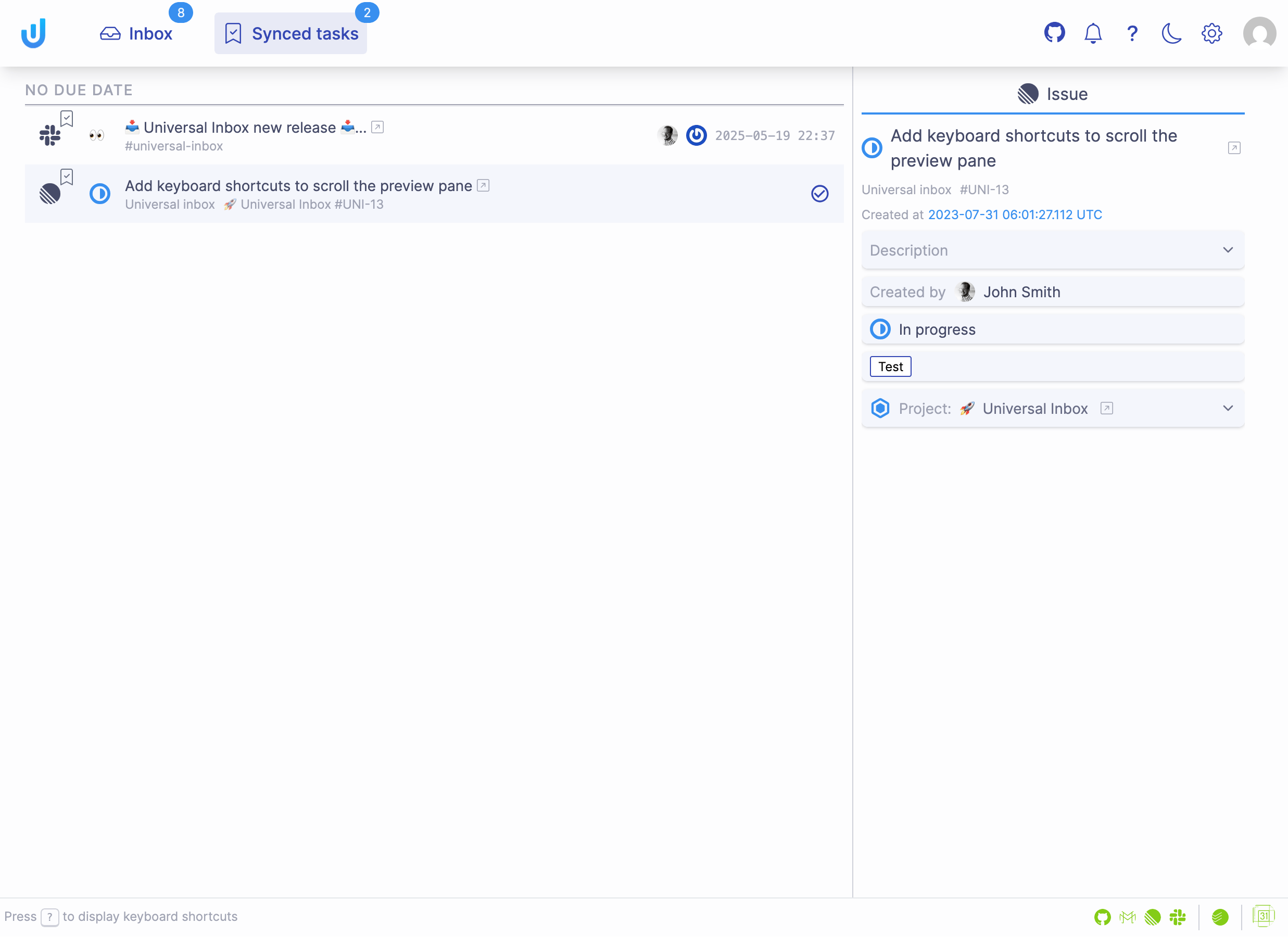
Overview
The Synced Tasks screen displays all tasks synchronized between your connected tools and your task management system. It follows the same dual-pane layout as the Inbox screen, but optimized specifically for task management.
Tasks List (Left Pane)
Each task entry includes:
- Source: Origin of the task (Linear, Slack, etc.)
- Type: Format of the task (Linear issue, Slack message reaction, etc.)
- Title: Main subject with contextual details
- Indicators: Additional information like author, priority, and other metadata
- Timestamp: When the task was last updated
Preview Pane (Right Side)
The preview pane displays comprehensive details about the selected task, allowing you to view its content and context without switching applications.
Task Lifecycle
Universal Inbox maintains continuous synchronization between three points: source tools, your task management tool, and the Universal Inbox interface.
Automatic Task Creation
When these events occur, Universal Inbox automatically creates tasks in your task management tool:
- A Linear issue is assigned to you
- You add a specific reaction to a Slack message
Completing Tasks
Mark as Complete: The primary action available for tasks is completion. When you complete a task in Universal Inbox, this status is synchronized across all connected systems:
- The source tool (e.g., Linear issue will be closed)
- Your task management tool (e.g., Todoist task will be completed)
- Universal Inbox interface
Configuration & Documentation
- Setup Instructions: For detailed configuration options, see Linear Integration or Slack Integration.
- Technical Details: To learn more about the synchronization process, visit the Synchronizing Tasks page.
Keyboard Shortcuts
Press ? anytime to display available keyboard shortcuts for faster navigation and task management.
For the complete reference of all keyboard shortcuts, visit the Keyboard Shortcuts page.
Integration Setup
Each connected tool has specific configuration options to customize how it synchronizes with Universal Inbox.
All integrations authorize Universal Inbox directly through the provider's own OAuth flow. You can review and revoke the apps you have authorized from the Security & Privacy page, and from each upstream provider's own security settings.
Connection Status
Your integrations will display one of these connection states:
-
Disconnected: The integration is available but not yet connected

-
Connected: The integration is successfully connected and authorized

-
Needs Reconnection: The integration is missing required authorizations. This typically happens when Universal Inbox adds new features that require additional permissions.

Synchronization Status
Once connected, each integration displays its current synchronization state:
- Not Yet Synchronized: Initial state before the first synchronization occurs.
- Successfully Synchronized: Data has been synchronized without issues.
- Synchronization Failed: An error occurred during synchronization. If errors persist, try disconnecting and reconnecting the integration. If problems continue, please contact support.
Tool-Specific Configuration
For detailed setup instructions for each tool, select the appropriate guide:
GitHub Integration
Notification Synchronization
The GitHub integration imports your GitHub notifications into Universal Inbox, giving you a centralized place to manage all your GitHub activity.
What Gets Synchronized
You receive GitHub notifications for various activities you're subscribed to:
- Conversations: Comments on issues, pull requests, or gists
- Repository Activity: Updates in repositories you watch
- CI/CD: Status updates from GitHub Actions workflows
- Repository Content: Issues, pull requests, releases, security alerts, and discussions (if enabled)
Managing Your Subscriptions
To control which GitHub notifications you receive, visit GitHub's documentation on managing your subscriptions.
Available Actions
With the GitHub integration, you can perform these actions directly from Universal Inbox:
- View detailed notification content
- Mark notifications as read/unread
- Unsubscribe from future updates
- Convert notifications to tasks in your task management tool
Google Mail Integration

Email Synchronization
The Google Mail integration allows you to selectively import email threads as notifications in Universal Inbox, giving you a streamlined way to manage important emails alongside your other notifications.
Email Triage, Not Replacement
Universal Inbox complements your email client rather than replacing it. You cannot reply to emails directly from Universal Inbox.
Universal Inbox serves as a powerful triage tool to help you:
- Prioritize: Quickly identify important emails among other notifications
- Review: Decide which messages need immediate attention
- Act: Determine appropriate actions (delete, snooze, or convert to a task)
- Track: Convert emails into tasks in your task management tool
Continue using your preferred email client alongside Universal Inbox for complete email functionality.
How It Works
The Google Mail integration offers a selective approach to email management:
Label-Based Filtering
Universal Inbox only synchronizes email threads that have a specific Google Mail label. This allows you to create Google Mail filters to automatically select which emails you want to manage in Universal Inbox, such as:
- Notifications from third-party services not directly supported by Universal Inbox
- Important emails where you are the direct recipient
- Messages requiring follow-up or action
- Specific categories of messages you want to track alongside other notifications
Thread Consolidation
Each email thread appears as a single notification in Universal Inbox, regardless of how many individual emails the thread contains. This reduces clutter and provides a cleaner view of your communications.
Configuration Options
- Google Mail Label to Synchronize: Select which labeled emails will be used to synchronize with Universal Inbox
For best results:
- Create a dedicated label in Google Mail like
Universal-Inbox - Set up Google Mail filters to automatically apply this label to important messages
- Select this label in Universal Inbox settings
This approach gives you precise control over which emails appear in Universal Inbox.
Available Actions
With Google Mail integration, you can perform these actions directly from Universal Inbox:
- View email thread content
- Delete threads (mark as read and archive in Google Mail)
- Convert emails into tasks in your task management tool
- Snooze emails for later handling
Linear Integration
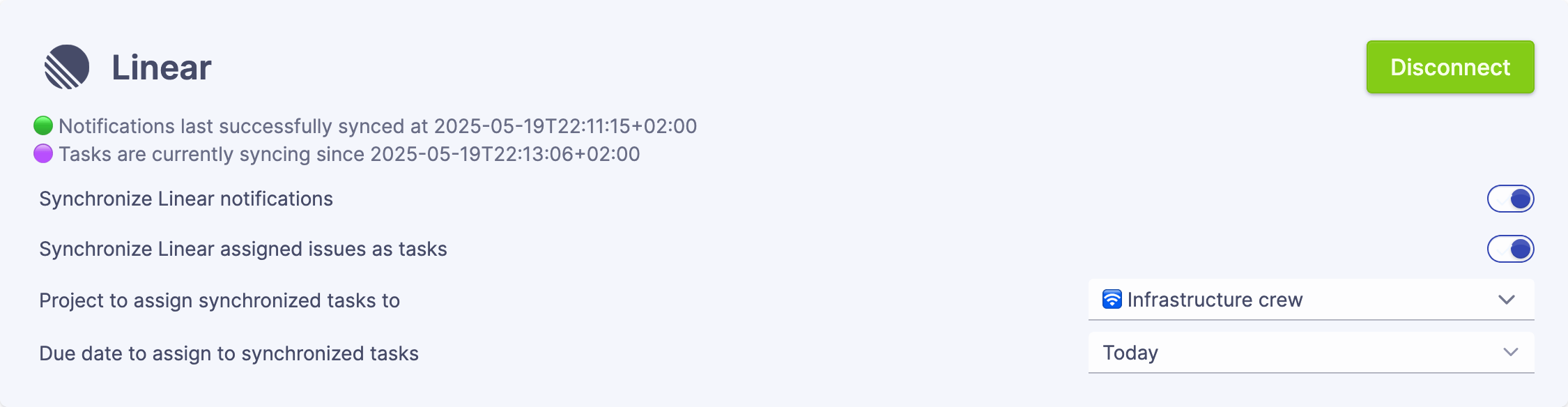
The Linear integration offers comprehensive support for both notifications and issue tracking, allowing you to manage your Linear workflow directly within Universal Inbox.
Notification Synchronization
When enabled, Universal Inbox imports all your Linear notifications, including:
- Issue Updates: Changes to status, priority, or assignments
- Project Changes: Updates to projects you're involved with
- Mentions: When you're tagged or referenced
- Comments: Responses on issues you're subscribed to
These notifications mirror what you would see in the Linear notifications inbox, but are now consolidated alongside notifications from your other tools in Universal Inbox.
Issue Synchronization
A key benefit of the Linear integration is that issues assigned to you can be automatically synchronized as tasks in your connected task management tool (like Todoist), creating a seamless workflow between your issue tracker and task manager.
Bidirectional Synchronization
Changes are automatically reflected in both systems:
- Task Management → Linear: Completing a task in your task management tool will mark the Linear issue as complete
- Linear → Task Management: Closing an issue in Linear will complete the associated task
For more information about how task synchronization works with Linear, see the How It Works page.
Configuration Options
You can customize how Linear issues appear in your task management tool:
- Project Assignment: Automatically sort issues into a specific project
- Due Date: Set the default due date for synchronized issues
- Task manager: If both Todoist and TickTick are connected, this picker chooses which one receives Linear-assigned issues. With only one task manager connected, the picker is hidden and tasks flow there automatically.
Both project assignment and due date settings are optional. If left unconfigured, tasks will use the default settings from your task management tool.
Available Actions
With the Linear integration, you can perform these actions directly from Universal Inbox:
- View detailed issue information
- Delete / Unsubscribe notifications
- Convert notifications to tasks (in addition to automatic synchronization)
- Complete tasks and have the status reflected in Linear
Slack Integration
The Slack integration for Universal Inbox provides multiple ways to track important Slack content and convert it into tasks. This integration helps you ensure that important messages don't get lost in the stream of Slack conversations.
Supported Slack Features
Universal Inbox connects with Slack through two different mechanisms. For each mechanism, you can choose to either receive items as notifications or synchronize them as tasks in your task management tool.
1. Message Reactions
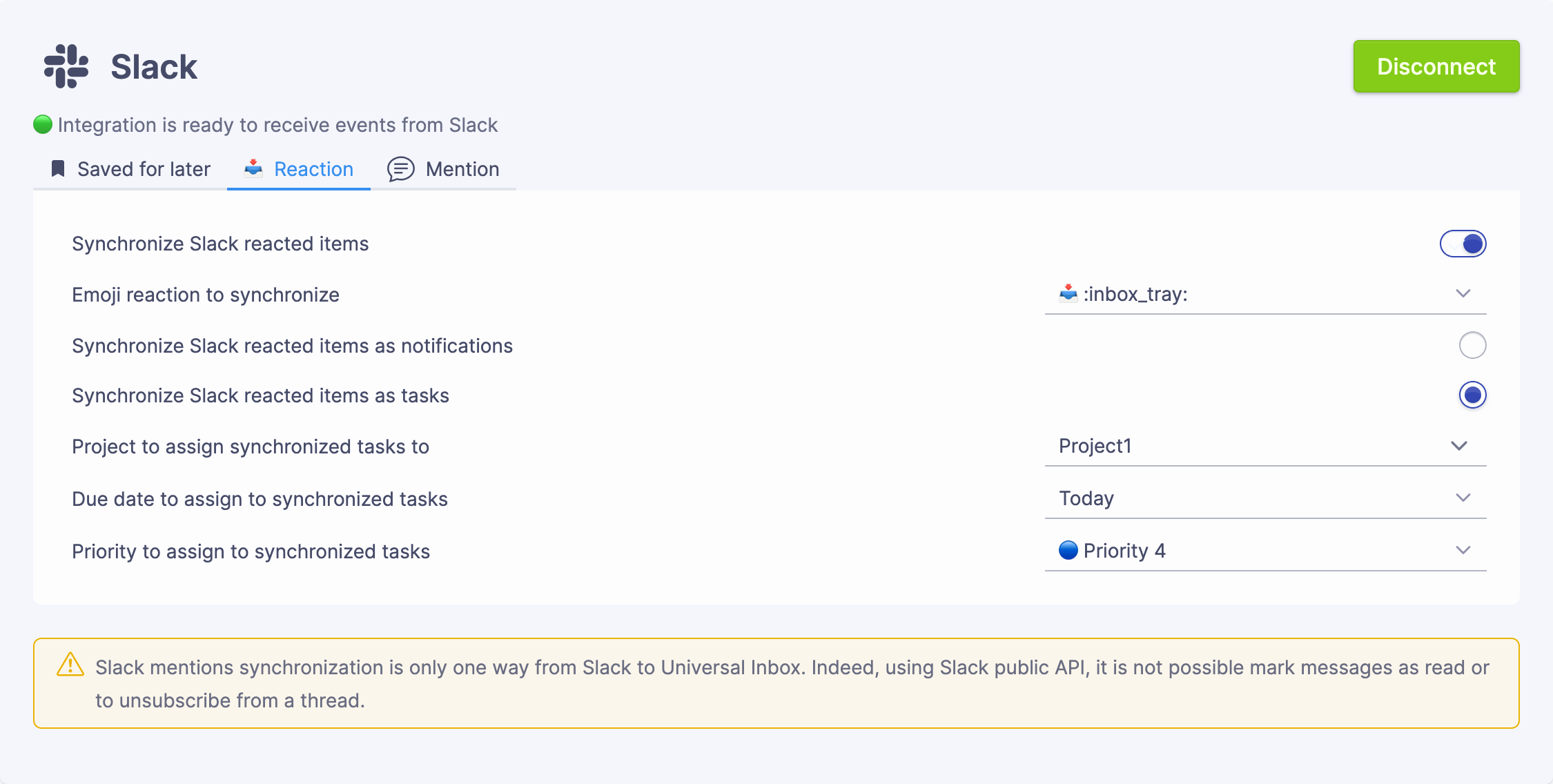
Specific emoji reactions can trigger task creation or a new notification. When you react to a message with your designated emoji, Universal Inbox can:
- Appear in your Universal Inbox notification feed
- Be converted to tasks in your task management tool
2. Message Mentions
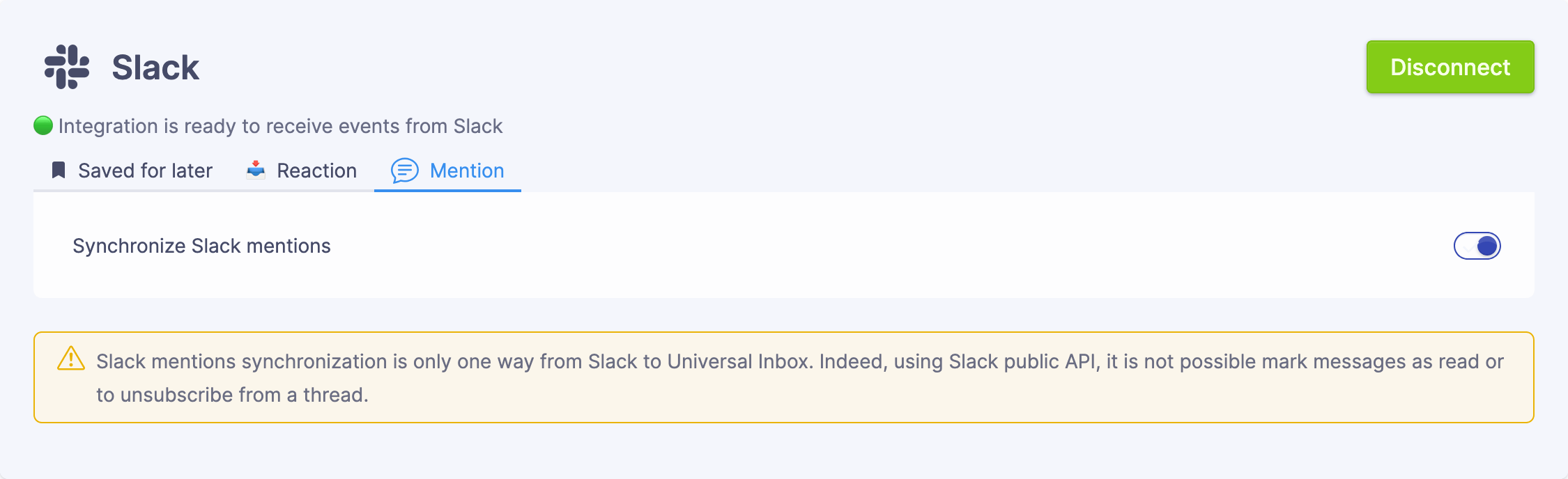
Messages where you're mentioned (@username or @groupname) can be tracked in Universal Inbox, helping you:
- Keep track of requests and questions directed to you
- Ensure you don't miss important mentions across multiple channels
Configuration Options
Each Slack integration component has its own settings:
Message Reactions
- Reaction Emoji: Select which emoji reaction will trigger synchronization. The picker is searchable — type part of an emoji name (
eyes,bookmark,white_check_mark…) and the dropdown shows the matching glyph next to each shortcode so you can confirm visually before committing. - Completion reaction emoji (optional): When enabled, Universal Inbox posts a second emoji on the source Slack message at the moment you complete the associated task. The trigger emoji (e.g.
eyes) marks "this needs to become a task", and the completion emoji (e.g.white_check_mark) marks "this task is done" — the two together create a visible audit trail in the channel.
You must choose one of the following synchronization methods:
- Notification Synchronization: Messages with your chosen reaction appear in your Universal Inbox notification feed
- Task Synchronization: Messages with your chosen reaction are synchronized as tasks in your task management tool
- Project Assignment: Optionally assign tasks to a specific project
- Due Date: Set a default due date for tasks created from reactions
- Priority: Set a default priority (P1–P4) for the new task
- Task manager: If both Todoist and TickTick are connected, pick which one receives Slack-reaction tasks
Message Mentions
Unlike the other integration options, Message Mentions can only be synchronized as notifications:
- Notification Synchronization: Messages mentioning you appear in your Universal Inbox notification feed
This allows you to keep track of conversations where you're mentioned.
You can enable any combination of these Slack integrations based on your workflow needs. For example, you might only want to use the reaction feature without tracking mentions.
Available Actions
With the Slack integration, you can:
- View reactions and mentions in one place
- Convert these items into tasks with proper due dates
- Complete tasks directly from Universal Inbox
Browser Extension Bridge
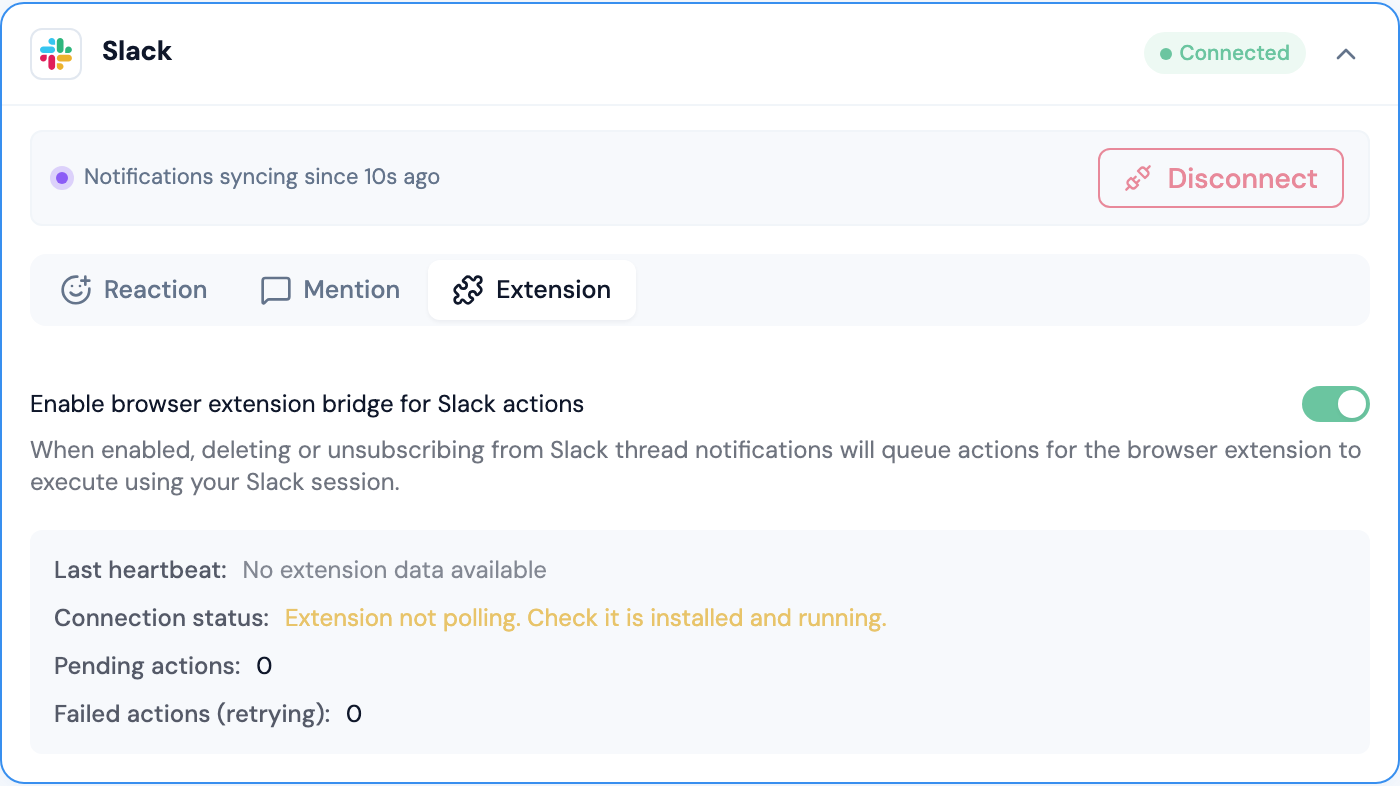
For Slack thread notifications (from mentions), you can enable the browser extension bridge to propagate delete and unsubscribe actions back to Slack. This enables 2-way sync between Universal Inbox and Slack threads, which isn't possible through Slack's public API alone.
Extension status indicators
Once the bridge is enabled, the Extension tab surfaces a small status panel so you can tell at a glance whether the extension is wired up correctly:
- Connection status:
- Extension not polling, the browser extension isn't installed or isn't running. Install/launch it and reload the Slack tab.
- Polling but no Slack tab detected, the extension is alive but cannot see a Slack tab. Open
app.slack.comin your browser, or grant the extension permission to access the tab. - Workspace mismatch, the Slack tab the extension is connected to belongs to a different team than the one your Universal Inbox Slack integration is authorized against. Sign in to the matching workspace, or reconnect the Slack integration to the workspace the extension can see.
- User mismatch, the Slack user signed in on the extension side doesn't match the user the integration was authorized as. Sign in to Slack as the same user the integration uses.
- Connected and ready, everything matches; actions will round-trip.
- Pending actions: actions queued on the server, waiting for the extension to pick them up. A non-zero count for more than a few seconds usually means the extension is offline.
- Failed actions (retrying): actions that failed at least once but are still being retried with exponential backoff. A persistent non-zero count usually points at a workspace/user mismatch — fix the status above and the queue will drain.
Browser Extension
The Universal Inbox browser extension enhances the integration between your browser and Universal Inbox. It provides two key capabilities:
Features
1. Send Web Pages as Notifications
Send any web page you're viewing to your Universal Inbox as a notification. This lets you capture interesting articles, documentation, or any web content for later processing.
2. Slack Bridge (2-Way Sync)
The browser extension bridges the gap between Universal Inbox and Slack's private API, enabling actions that aren't possible through Slack's public API:
- Mark as Read: When you delete a Slack thread notification in Universal Inbox, the extension marks the thread as read in Slack
- Unsubscribe: When you unsubscribe from a Slack thread notification, the extension unsubscribes you from the thread in Slack
How the Slack Bridge Works
Universal Inbox                    Browser Extension                  Slack
     |                                   |                              |
     | 1. Delete/Unsubscribe             |                              |
     |    notification                   |                              |
     |                                   |                              |
     | 2. Queue pending action           |                              |
     |                                   |                              |
     |          3. Poll for actions      |                              |
     |<----------------------------------|                              |
     |                                   |                              |
     |          4. Return pending actions|                              |
     |---------------------------------->|                              |
     |                                   |                              |
     |                                   | 5. Execute via private API   |
     |                                   |----------------------------->|
     |                                   |                              |
     |          6. Report success/failure|                              |
     |<----------------------------------|                              |
- You perform a delete or unsubscribe action on a Slack thread notification in Universal Inbox
- Universal Inbox queues the action as a "pending action" (only when extension bridge is enabled)
- The browser extension polls Universal Inbox every 30 seconds for pending actions
- Universal Inbox returns any pending actions, matching them by Slack team ID
- The extension executes the action using Slack's private API through your authenticated browser session
- The extension reports success or failure back to Universal Inbox
Requirements
- The extension must be installed and running in a browser where you are logged into Slack
- The extension bridge must be enabled in the Slack integration settings under the "Extension" tab
- The Slack workspace in the browser must match the workspace connected in Universal Inbox
Supported Actions
| Universal Inbox Action | Slack Effect |
|---|---|
| Delete (thread notification) | Mark thread as read |
| Unsubscribe (thread notification) | Unsubscribe from thread |
Installation
Firefox
- Open the Universal Inbox add-on on Firefox Add-ons
- Click Add to Firefox, then confirm the permission prompt
Chrome
- Open the Universal Inbox extension on the Chrome Web Store
- Click Add to Chrome, then confirm by clicking Add extension
Configuration
After installation, open the extension options to configure:
- API URL: Set to your Universal Inbox instance URL (defaults to
https://app.universal-inbox.com) - Slack Bridge: Enable the bridge in the Slack integration settings under the "Extension" tab
Troubleshooting
Extension not detected
- Verify the extension is installed and enabled in your browser
- Check that you are logged into Slack in the same browser
- Reload the extension from the browser's extension management page
Team credential mismatch
- Ensure you are logged into the correct Slack workspace in the browser
- The workspace must match the one connected in Universal Inbox's Slack integration
Actions failing
- Check the browser console for error messages from the extension
- Verify your Slack session hasn't expired (try refreshing Slack in the browser)
- Check that the extension has the necessary permissions
Todoist Integration

The Todoist integration is a core component of Universal Inbox, enabling powerful task management capabilities that connect your notifications with your Todoist workflow.
Universal Inbox supports two task managers: Todoist and TickTick. When both are connected, the Slack reaction and Linear configuration screens let you pick which task manager receives newly created tasks.
Key Features
Connecting Todoist with Universal Inbox enables you to:
- Create Tasks from Notifications: Convert any notification into a Todoist task with one click
- Link Notifications to Tasks: Associate existing notifications with tasks you've already created
- Bidirectional Synchronization: Keep tasks in sync between Todoist and other connected tools
- Centralized Task Management: View and update tasks from multiple sources in one interface
Configuration Options
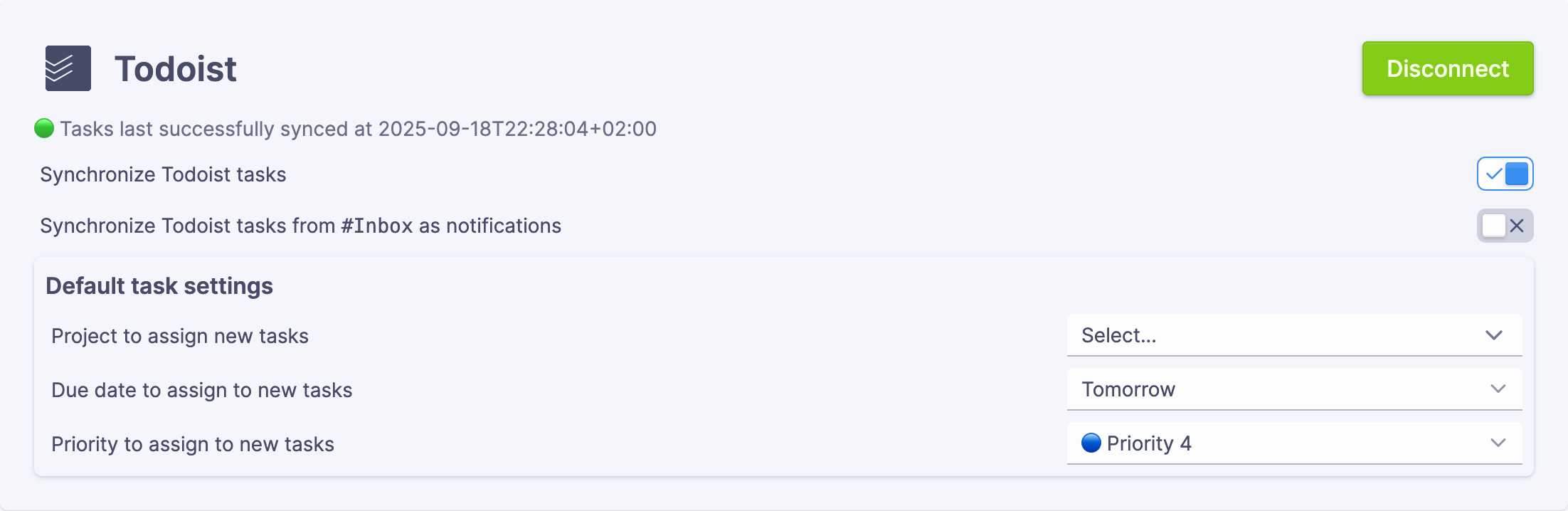
- Synchronize Todoist tasks from
#Inboxas notifications: When enabled, tasks from your Todoist Inbox project will appear in Universal Inbox's notification feed, allowing you to process them alongside your other notifications.
This option is particularly useful if you use Todoist's quick-add features or email forwarding to create tasks that need further sorting or organization.
- Default tasks settings: This allows you to create a Todoist task from a notification with a single click or key stroke without the need to enter parameters each time.
Available Actions
With the Todoist integration, you can:
- Create new Todoist tasks from any notification
- Link existing Todoist tasks to notifications
- Complete tasks from Universal Inbox (status updates in Todoist)
- View task details, including due dates and priorities
TickTick Integration
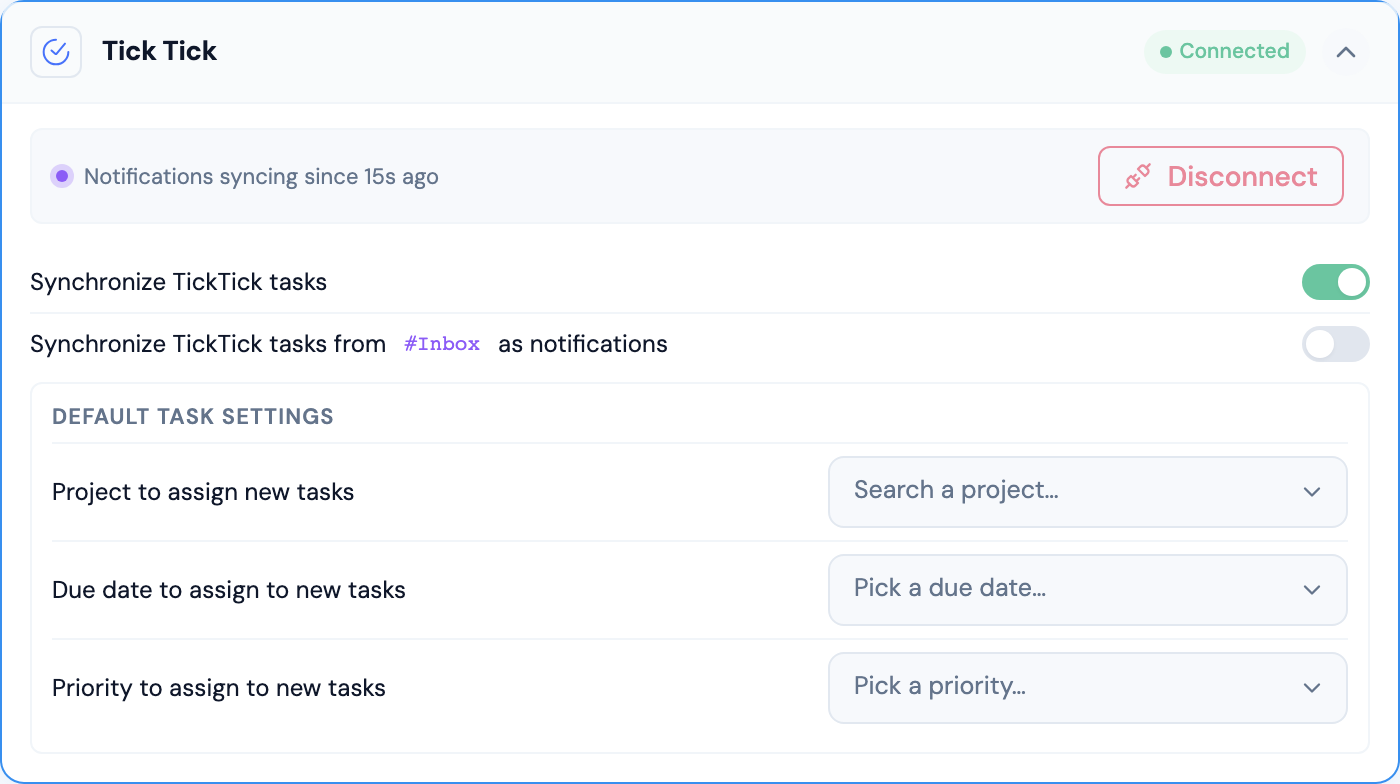
The TickTick integration is one of two task managers supported by Universal Inbox (the other is Todoist). Connecting TickTick lets you turn notifications into TickTick tasks and keeps the status of those tasks in sync with the source tools that generated the notifications.
You can connect Todoist and TickTick at the same time. When both are connected, integrations that create tasks (Linear assigned issues, Slack reactions, manual task creation) expose a task-manager picker so you choose which one receives the new task.
Key Features
Connecting TickTick with Universal Inbox enables you to:
- Create Tasks from Notifications: Convert any notification into a TickTick task
- Link Notifications to Tasks: Associate existing notifications with TickTick tasks you've already created
- Bidirectional Synchronization: Complete a task in TickTick and Universal Inbox marks the linked notification (and its counterpart in the source tool) as done, and vice versa
- Centralized Task Management: View and update TickTick tasks alongside tasks from your other tools in the Synced Tasks screen
Configuration Options
-
Synchronize TickTick tasks: Master toggle. When enabled, Universal Inbox pulls your TickTick tasks and keeps them in sync. Disable it temporarily to pause synchronization without losing your settings.
-
Synchronize TickTick tasks from
#Inboxas notifications: When enabled, tasks sitting in your TickTick Inbox project appear in the Universal Inbox notification feed so you can triage them alongside your other notifications. Useful if you rely on TickTick's quick-add or email-forwarding flows to capture items that still need sorting. -
Default tasks settings: Lets you create a TickTick task from a notification with a single keystroke without picking parameters each time:
- Project to assign new tasks: The TickTick project where new tasks land by default.
- Due date to assign to new tasks: A relative due date (today, tomorrow, this week, etc.).
- Priority to assign to new tasks: P1, P2, P3, or P4.
The defaults are also used when you press the "Create task with defaults" shortcut on a notification, which creates the task in one step instead of opening the task-creation modal.
Synchronization Behavior
TickTick's V1 API does not expose an incremental sync token, so Universal Inbox tracks the timestamp of the last successful sync to decide what to fetch on the next round. In practice this means initial syncs (and the first sync after a long pause) take a little longer than Todoist's, but day-to-day updates are equally responsive.
Available Actions
With the TickTick integration, you can:
- Create new TickTick tasks from any notification
- Link existing TickTick tasks to notifications
- Complete TickTick tasks from Universal Inbox — the change is reflected back in TickTick and in the source tool that originated the notification
- View task details (project, due date, priority) inline in the preview pane
Google Calendar Integration

Calendar Invitation Management
The Google Calendar integration extends the Google Mail integration to enhance your event management workflow. Once enabled, you can respond to calendar invitations directly within Universal Inbox without switching to Google Mail or Google Calendar.
How It Works
- Google Mail Connection Required: This integration depends on having the Google Mail integration set up and properly configured
- Automatic Detection: Universal Inbox automatically detects calendar invitations in your synchronized emails
- Direct Responses: Accept, tentatively accept, or decline invitations without leaving Universal Inbox
When you respond to a calendar invitation through Universal Inbox, your Google Calendar is automatically updated with your response status.
Available Actions
With calendar invitations in Universal Inbox, you can:
- Accept: Confirm your attendance at the event
- Maybe: Indicate tentative attendance
- Decline: Reject the invitation
- View Details: See event time, location, and other participants
Google Drive Integration

Comments Synchronization
The Google Drive integration imports comments into Universal Inbox as notification:
- Replies to comments you have authored in a file
- Comments where you have been mentioned
Available Actions
With Google Drive comments in Universal Inbox, you can:
- View the comment, all its replies and the quoted content it is referring to
- Delete the comment notification. It won't have any impact on the file or the comment on Google Drive. You will still receive futur replies as notifications.
- Unsubscribe the comment notificaiton. It won't have any impact on the file or the comment on Google Drive. You will not receive as notification future replies unless you are mentioned again.
- Convert a comment into a tasj in you task management tool
- Snooze the comment notification for later handling
Collecting notifications
Overview
Universal Inbox centralizes notifications from various tools into a unified interface. This process involves several steps to securely fetch, normalize, and display notifications from different sources.
Notification Collection Mechanism
OAuth Authorization
When you connect an integration (GitHub, Linear, Google Mail, Slack), Universal Inbox establishes a secure connection using OAuth:
- You authorize Universal Inbox to access your account on the respective tool
- The tool provides access tokens that Universal Inbox securely stores
- These tokens are used to fetch notifications on your behalf
Synchronization Frequency
Synchronization happens through two methods:
- Automatic Background Sync: Occurs every few minutes while you're logged in
- Manual Refresh: Triggered when you connect or re-connect an integration.
Integration-Specific Collection
Slack
Unlike other integrations, Slack uses a real-time webhook system that delivers events to Universal Inbox as they occur. This results in faster notification delivery compared to the scheduled synchronization used by other integrations.
Notification Lifecycle
After collection, notifications become part of the Universal Inbox workflow:
- Initial Collection: Notification appears in your inbox
- User Action: You can delete, snooze, unsubscribe, or convert to a task
- Updates: If the source notification is updated, Universal Inbox refreshes its content
- Resolution: When a notification is handled in its source platform or through Universal Inbox actions
Synchronizing tasks
Overview
Task synchronization is a core feature of Universal Inbox, enabling bidirectional sync between your task management tool (such as Todoist) and other connected tools (e.g., Linear, Slack). This ensures that tasks remain consistent across all tools in your workflow.
Synchronization Mechanisms
OAuth Authorization
When you connect an integration (GitHub, Linear, Google Mail, Slack), Universal Inbox establishes a secure connection using OAuth:
- You authorize Universal Inbox to access your account on the respective tool
- The tool provides access tokens that Universal Inbox securely stores
- These tokens are used to fetch notifications on your behalf
Bidirectional Synchronization
Universal Inbox maintains real-time consistency between tools through:
- Source to Task Manager: When tasks are created or updated in source tools (Linear, Slack), changes are synchronized to your task management tool
- Task Manager to Source: When tasks are completed or updated in your task management tool, changes are reflected back in the source tools
Synchronization Frequency
Task synchronization occurs through:
- Automatic Background Sync: Occurs every few minutes while you're logged in
- Manual Refresh: Triggered when you connect or re-connect an integration
Tool-Specific Synchronization
Linear Integration
When synchronizing with Linear:
- Assigned issues in Linear appear as tasks in your task manager
- Completing a task in your task manager marks the Linear issue as completed
Slack Integration
Unlike other integrations, Slack uses a real-time webhook system that delivers events to Universal Inbox as they occur.
When synchronizing with Slack:
- Messages with specific reactions appear as tasks in your task manager
- Completing a task in your task manager removes the reaction in Slack
Specify which emoji reactions should trigger task creation in the Slack integration settings
Notification to Task Conversion
When you convert notifications into tasks:
- A new task is created in your task management tool
- The task includes a link back to the original notification source
- The notification is marked as associated with this task in Universal Inbox
Data Mapping
To ensure accurate synchronization, Universal Inbox maps fields between different platforms:
- Task Title: Maintained across platforms with source context
- Task Status: Completion status is synchronized bidirectionally
- Task Priority: When available, priority levels are mapped between systems
- Task Details: Description, notes, and metadata are preserved
Task Lifecycle
Synchronized tasks follow a consistent lifecycle:
- Creation: Tasks are created in source tools or by converting notifications
- Synchronization: Tasks are synchronized to your task management tool
- Updates: Changes to task properties (priority, description) are synchronized bidirectionally. Due date is not updated after the creation of the task to allow you to keep your own organization of tasks.
- Completion: When marked as complete in either system, the completion status is synchronized.
Actions by integration
Overview
Universal Inbox allows you to perform specific actions on notifications from different tools. These actions help you manage your notifications effectively without having to switch between multiple applications.
This section provides detailed information about the actions available for each supported integration.
Use keyboard shortcuts for faster action execution! Press ? to view available shortcuts.
GitHub
GitHub Notification Types
Universal Inbox collects several types of GitHub notifications:
- Issue: Updates on issues you're assigned, mentioned in, or watching
- Pull Request: Review requests, comments, approvals, and mentions
- Discussion: Updates on discussions you've participated in
- Repository Invitation: Invitations to collaborate on repositories
- Security Alert: Security vulnerabilities in repositories you maintain
- Workflow Run: CI/CD workflow completion notifications
Available Actions
Actions on notifications
The following actions apply to all GitHub notifications from the Inbox screen:
View in GitHub
- Keyboard Shortcut:
Enter - Effect: Opens the notification source in GitHub
This action lets you view the full context of the notification directly in GitHub, where you can respond, review code, or participate in discussions.
Delete
- Keyboard Shortcut:
d - Effect in Universal Inbox: Removes the notification from your inbox until the next update
- Effect in GitHub: The notification is marked as read
Use this action when you want to clear a notification from your Universal Inbox and GitHub. The notification will reappear if updated in GitHub.
Unsubscribe
- Keyboard Shortcut:
u - Effect in Universal Inbox: Removes the notification from your inbox
- Effect in GitHub: Unsubscribes you from the underlying issue or discussion, preventing future notifications. It can still be re-subscribed to if you are directly pinged in the issue or discussion.
This action helps reduce notification noise by unsubscribing you from conversations that aren't relevant to your work.
Snooze
- Keyboard Shortcut:
s - Effect in Universal Inbox: Temporarily hides the notification for a few hours
- Effect in GitHub: No change in GitHub
Use this when you need to defer handling a notification until later.
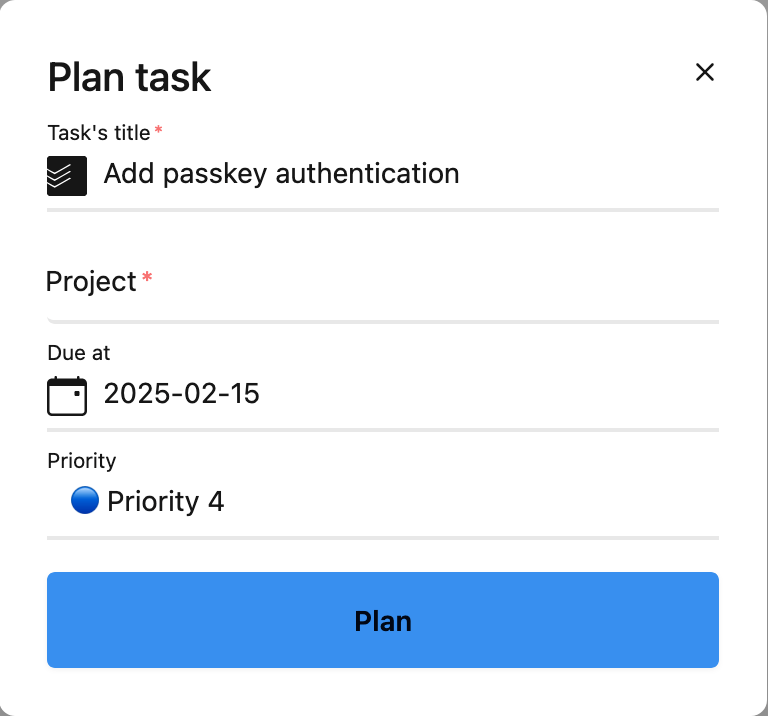
Create Task
- Keyboard Shortcut:
p - Keyboard Shortcut (with default task parameters):
t - Effect in Universal Inbox: Links notification to a newly created task and remove the notification from your inbox
- Effect in GitHub: Mark the notification as read
- Effect in Task Manager: Creates a new task with a link to the GitHub item
Ideal for converting a GitHub notification into a task in your task management tool.
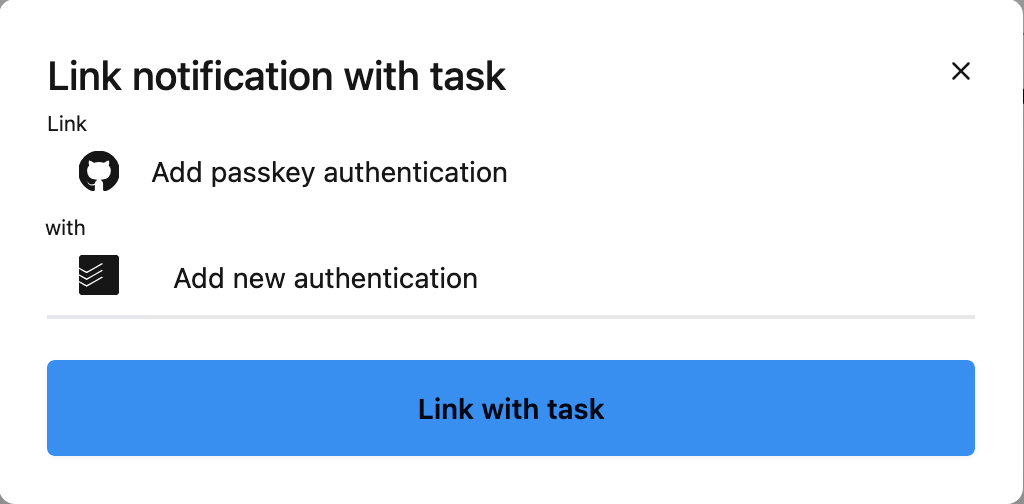
Link to Task
- Keyboard Shortcut:
l - Effect in Universal Inbox: Links notification to an existing task and remove the notification from your inbox
- Effect in GitHub: Mark the notification as read
- Effect in Task Manager: Add a link to the GitHub item in the task description
Use this when you already have a task related to this GitHub notification.
Google Mail
Google Mail Notification Types
Universal Inbox collects email threads from Google Mail that are marked with the label you've configured for synchronization.
Available Actions
Actions on notifications
The following actions apply to all Google Mail notifications from the Inbox screen:
View in Google Mail
- Keyboard Shortcut:
Enter - Effect: Opens the email thread in Google Mail
This action lets you view the full email thread directly in Google Mail, where you can respond, forward, or perform other email actions.
Delete
- Keyboard Shortcut:
d - Effect in Universal Inbox: Removes the notification from your inbox until the next reply in the thread
- Effect in Google Mail: Mark the thread as read and archived
Use this action when you want to clear a notification from your Universal Inbox and mark the thread as read and archived in Google Mail. The notification will reappear if the thread receives a new reply.
Unsubscribe
- Keyboard Shortcut:
u - Effect in Universal Inbox: Removes the notification from your inbox
- Effect in Google Mail: Mark the thread as read and archived. Future replies will be automatically marked as read and archived.
This action helps reduce notification noise by preventing future replies from this email thread from appearing in Universal Inbox.
Snooze
- Keyboard Shortcut:
s - Effect in Universal Inbox: Temporarily hides the notification for a few hours
- Effect in Google Mail: No change in Google Mail
Use this when you need to defer handling an email until later.
Create Task
- Keyboard Shortcut:
p - Keyboard Shortcut (with default task parameters):
t - Effect in Universal Inbox: Links notification to a newly created task and remove the notification from your inbox
- Effect in Google Mail: Mark the thread as read and archived
- Effect in Task Manager: Creates a new task with a link to the Google Mail thread
Ideal for converting an email into an actionable task in your task management tool.
Link to Task
- Keyboard Shortcut:
l - Effect in Universal Inbox: Links notification to an existing task and remove the notification from your inbox
- Effect in Google Mail: Mark the thread as read and archived
- Effect in Task Manager: Add a link to the Google Mail thread in the task description
Use this when you already have a task related to this email thread.
Linear
Linear Notification Types
Universal Inbox collects several types of Linear notifications:
- Issue Assignment: Notifications when issues are assigned to you
- Issue Comment: Comments on issues you're involved with
- Issue Status Change: Updates when issue statuses change
- Project Update: Updates on projects you're participating in
- Mention: Direct mentions in issues or comments
Available Actions
Actions on notifications
The following actions apply to all Linear notifications from the Inbox screen:
View in Linear
- Keyboard Shortcut:
Enter - Effect: Opens the notification source (ie. issue or project) in Linear
This action lets you view the full context of the notification directly in Linear, where you can respond to comments, update issues, or participate in project discussions.
Delete
- Keyboard Shortcut:
d - Effect in Universal Inbox: Removes the notification from your inbox until the next update
- Effect in Linear: Delete all the notifications of the issue or project
Use this action when you want to clear a notification from your Universal Inbox and Linear. The notification will reappear if updated in Linear.
Unsubscribe
- Keyboard Shortcut:
u - Effect in Universal Inbox: Removes the notification from your inbox
- Effect in Linear: Unsubscribes you from the issue, preventing future notifications. It can still be re-subscribed to if you are directly pinged in the issue or project.
This action helps reduce notification noise by unsubscribing you from issues that aren't relevant to your work.
Snooze
- Keyboard Shortcut:
s - Effect in Universal Inbox: Temporarily hides the notification for a few hours
- Effect in Linear: Linear notifications are also snoozed for the same duration
Use this when you need to defer handling a notification until later.
Create Task
- Keyboard Shortcut:
p - Keyboard Shortcut (with default task parameters):
t - Effect in Universal Inbox: Links notification to a newly created task and remove the notification from your inbox
- Effect in Linear: Delete all the notifications of the issue or project
- Effect in Task Manager: Creates a new task with a link to the Linear issue or project
Ideal for converting a Linear notification into an actionable task in your task management tool, especially when you want to track it outside of Linear.
Link to Task
- Keyboard Shortcut:
l - Effect in Universal Inbox: Links notification to an existing task and remove the notification from your inbox
- Effect in Linear: Delete all the notifications of the issue or project
- Effect in Task Manager: Add a link to the Linear issue or project in the task description
Use this when you already have a task related to this Linear notification.
Actions on tasks
The following actions apply to all tasks synchronized with Linear issues assigned to you from the Synchronized Tasks screen:
View in Linear
- Keyboard Shortcut:
Enter - Effect: Opens the Linear issue in Linear
Complete task
- Keyboard Shortcut:
c - Effect in Universal Inbox: Removes the task from your synchronized tasks list
- Effect in Linear: Marks the Linear issue as done
- Effect in Task Manager: Marks the task as completed
Slack
Slack Message Types
Universal Inbox collects specific types of Slack messages based on your configuration:
- Emoji-Reacted Messages: Messages you've reacted to with specific emoji (configurable)
- Direct Mentions: Messages where you're explicitly mentioned
Slack notification collection is customizable. See the Slack integration settings to specify which message types appear in Universal Inbox.
Available Actions
Actions on notifications
The following actions apply to all Slack notifications from the Inbox screen:
View in Slack
- Keyboard Shortcut:
Enter - Effect: Opens the message directly in Slack
This action lets you view the full message context in Slack, where you can respond, add reactions, or interact with threads.
Delete
- Keyboard Shortcut:
d - Effect in Universal Inbox: Removes the notification from your inbox until the next reply in the thread
- Effect in Slack: Remove the reaction from the message. It does not mark the message as read.
Use this action when you want to clear a notification from your Universal Inbox. The notification will reappear if there's a new reply in the thread for notifications from a Slack mention.
Due to Slack API limitations, the read status of a message cannot be changed through the public API. When the browser extension bridge is enabled, the extension will mark the thread as read in Slack using your browser session.
Unsubscribe
- Keyboard Shortcut:
u - Effect in Universal Inbox: Removes the notification from your inbox
- Effect in Slack: Remove the reaction from the message. It does not mark the message as read, nor unsubscribe the Slack thread for notifications from Slack mentions.
Due to Slack API limitations, the subscription status of a thread cannot be changed through the public API. When the browser extension bridge is enabled, the extension will unsubscribe you from the thread in Slack using your browser session.
Snooze
- Keyboard Shortcut:
s - Effect in Universal Inbox: Temporarily hides the notification for a few hours
- Effect in Slack: No change in Slack
Use this when you need to defer handling a message until later.
Create Task
- Keyboard Shortcut:
p - Keyboard Shortcut (with default task parameters):
t - Effect in Universal Inbox: Links notification to a newly created task and remove the notification from your inbox
- Effect in Slack: Remove the reaction from the message. It does not mark the message as read.
- Effect in Task Manager: Creates a new task with a link to the Slack message
Ideal for converting a Slack message into an actionable task in your task management tool.
Link to Task
- Keyboard Shortcut:
l - Effect in Universal Inbox: Links notification to an existing task and remove the notification from your inbox
- Effect in Slack: Remove the reaction from the message. It does not mark the message as read.
- Effect in Task Manager: Add a link to the Slack message in the task description
Use this when you already have a task related to this Slack message.
Todoist
Overview
Todoist integration is a central component of Universal Inbox, serving as the primary task management system. Rather than simply collecting notifications from Todoist, this integration enables bidirectional synchronization of tasks between Todoist and other connected tools.
Integration Role
Todoist in Universal Inbox serves several key functions:
- Task Repository: Acts as the central storage for all tasks across tools
- Synchronization Hub: Enables bidirectional sync between tasks and source tools
- Task Creation Target: Receives tasks created from notifications
Available Actions
Task Management
Complete Task
- Keyboard shortcut:
c - Effect in Universal Inbox: Marks the synchronized task or task associated to a notification as complete and remove the notification from your inbox
- Effect in Todoist: Completes the task in Todoist
- Effect in Source Tool: Updates the status in the original platform (e.g., completes a Linear issue, removes a Slack reaction)
This is the primary action for tasks, which synchronizes completion status across all platforms.
TickTick
Overview
TickTick is one of two task managers Universal Inbox synchronizes with (the other is Todoist). Like Todoist, it serves as a central repository for tasks and as the synchronization hub for status updates flowing back to source tools.
Integration Role
TickTick in Universal Inbox serves several key functions:
- Task Repository: Acts as the central storage for tasks created from notifications
- Synchronization Hub: Status updates flow between Universal Inbox, TickTick, and the source tool of each notification
- Task Creation Target: When you create a task from a notification, you can pick TickTick as the destination (if Todoist is also connected, a task-manager picker appears)
Available Actions
Task Management
Complete Task
- Keyboard shortcut:
c - Effect in Universal Inbox: Marks the synchronized task or task associated to a notification as complete and removes the notification from your inbox
- Effect in TickTick: Completes the task in TickTick
- Effect in Source Tool: Updates the status in the original platform (e.g., completes a Linear issue, removes a Slack reaction)
This is the primary action for tasks, which synchronizes completion status across all platforms.
Google Calendar
Calendar Notification Types
Universal Inbox collects specific types of Google Calendar notifications:
- Meeting Invitations: New calendar invitations requiring your response
- Meeting Updates: Changes to meetings you're invited to
- Cancellations: Notifications about canceled meetings
Google Calendar integration focuses primarily on invitation management, helping you respond to meeting requests without leaving Universal Inbox.
Available Actions
Actions on notifications
The following actions apply to all Google Calendar notifications from the Inbox screen:
View in Calendar
- Keyboard Shortcut:
Enter - Effect: Opens the calendar event in Google Calendar
This action lets you view the full event details directly in Google Calendar, where you can see the complete attendee list, access video conferencing links, or view your full schedule.
Delete
- Keyboard Shortcut:
d - Effect in Universal Inbox: Removes the notification from your inbox until the next update
- Effect in Google Calendar: No change in Google Calendar
Use this action when you want to clear a notification from your Universal Inbox without affecting its status in Google Calendar. The notification will reappear if the event is updated.
Unsubscribe
- Keyboard Shortcut:
u - Effect in Universal Inbox: Removes the notification from your inbox
- Effect in Google Calendar: No direct effect in Google Calendar, but future updates to this event won't appear in Universal Inbox
This action helps reduce notification noise by preventing future updates about this event from appearing in Universal Inbox.
Snooze
- Keyboard Shortcut:
s - Effect in Universal Inbox: Temporarily hides the notification for a few hours
- Effect in Google Calendar: No change in Google Calendar
Use this when you need to defer handling an invitation until later.
Create Task
- Keyboard Shortcut:
p - Keyboard Shortcut (with default task parameters):
t - Effect in Universal Inbox: Links notification to a newly created task and remove the notification from your inbox
- Effect in Google Calendar: No change in Google Calendar
- Effect in Task Manager: Creates a new task with a link to the calendar event
Ideal for creating follow-up tasks related to calendar events.
Link to Task
- Keyboard Shortcut:
l - Effect in Universal Inbox: Links notification to an existing task and remove the notification from your inbox
- Effect in Google Calendar: No change in Google Calendar
Use this when you already have a task related to this calendar event.
Calendar-Specific Actions
Accept Invitation
- Keyboard Shortcut:
y - Effect in Universal Inbox: Updates invitation status indicator to "Accepted" and remove the notification from your inbox
- Effect in Google Calendar: Marks you as "Going" for the event
Quickly accept meeting invitations directly from Universal Inbox.
Maybe/Tentative
- Keyboard Shortcut:
m - Effect in Universal Inbox: Updates invitation status indicator to "Maybe" and remove the notification from your inbox
- Effect in Google Calendar: Marks you as "Maybe" for the event
Indicates that you might attend the meeting but aren't committing yet.
Decline Invitation
- Keyboard Shortcut:
n - Effect in Universal Inbox: Updates invitation status indicator to "Declined" and remove the notification from your inbox
- Effect in Google Calendar: Marks you as "Not Going" for the event
Decline meetings that you can't or don't want to attend.
Google Drive
Notification Types
Universal Inbox collects comments from any files hosted on Google drive.
Available Actions
Actions on notifications
The following actions apply to all Google Drive comment notifications from the Inbox screen:
View in Google Drive
- Keyboard Shortcut:
Enter - Effect: Opens the file and the comment in Google Drive
This action lets you view the commented file with the comment directly in Google Drive.
Delete
- Keyboard Shortcut:
d - Effect in Universal Inbox: Removes the notification from your inbox until the next update
- Effect in Google Drive: No change in Google Drive
Use this action when you want to clear a notification from your Universal Inbox without affecting the file in Google Drive. The notification will reappear if there is a new reply to the comment.
Unsubscribe
- Keyboard Shortcut:
u - Effect in Universal Inbox: Removes the notification from your inbox
- Effect in Google Drive: No direct effect in Google Drive, but future replies to the comment won't appear in Universal Inbox unless the user is mentioned again.
This action helps reduce notification noise by preventing future replies of this comment from appearing in Universal Inbox.
Snooze
- Keyboard Shortcut:
s - Effect in Universal Inbox: Temporarily hides the notification for a few hours
- Effect in Google Drive: No change in Google Drive
Use this when you need to defer handling an invitation until later.
Create Task
- Keyboard Shortcut:
p - Keyboard Shortcut (with default task parameters):
t - Effect in Universal Inbox: Links notification to a newly created task and remove the notification from your inbox
- Effect in Google Drive: No change in Google Drive
- Effect in Task Manager: Creates a new task with a link to the comment
Ideal for creating follow-up tasks related to comments.
Link to Task
- Keyboard Shortcut:
l - Effect in Universal Inbox: Links notification to an existing task and remove the notification from your inbox
- Effect in Google Drive: No change in Google Drive
Use this when you already have a task related to this comment.
Security & Privacy
Universal Inbox issues you a few different kinds of credentials and authorizations as you use the product. This page describes where each one lives, how to inspect it, and how to revoke it if you no longer need it.
Authentication methods
You can sign in to Universal Inbox using any combination of the methods your administrator has enabled — typically a password, a passkey (WebAuthn), and/or Google Sign-In (OpenID Connect). Multiple methods can be linked to the same account so you can pick whichever is most convenient on a given device.
To manage your authentication methods, open your user profile and look for the Authentication methods card:
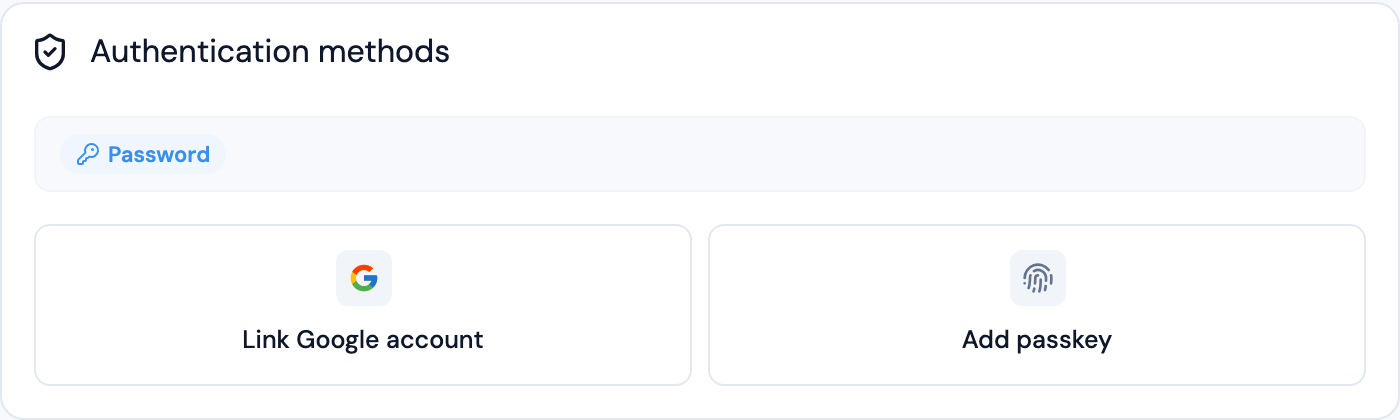
From this card you can:
- See which methods are currently linked
- Add a password if you only signed up with Google or a passkey
- Add a passkey to an existing account
- Remove a method (Universal Inbox always keeps at least one method linked so you cannot lock yourself out)
The set of methods you can add depends on what is enabled on your instance. Self-hosted operators configure this through the [[application.security.authentication]] blocks in the server config.
Authorized OAuth clients
When you sign an external application into Universal Inbox via OAuth (for example, an MCP client like Claude Desktop, or a custom script using the OAuth 2.1 flow), the authorization is recorded on the Security page under Authorized OAuth2 clients:

For each authorized client you can see:
- The client's display name
- The scopes it was granted (
read,write) - When it was first authorized
- When it was last used
Use the per-row action to revoke a client's access. Once revoked, that client's refresh tokens are invalidated immediately and any access token will stop working at the next request.
Universal Inbox's integrations (GitHub, Linear, Slack, Todoist, TickTick, Google Mail/Calendar/Drive) run their OAuth flows directly against the upstream provider. You can review and revoke Universal Inbox's access to each provider from that provider's own security settings, the same way you would for any other connected app.
API keys
API keys are an alternative to OAuth for tools that do not implement the MCP authorization spec (for example, the Raycast extension). The Security page lists every key you have created, when it was last used, and lets you revoke any key you no longer need.
For details on creating and using API keys, see API usage.
Universal Inbox with AI Agents
Universal Inbox can be used from AI agents through its remote MCP endpoint.
Universal Inbox MCP is implemented as a standard remote HTTP MCP server. MCP-capable clients such as Claude Code, Claude Desktop, Codex, ChatGPT, and Le Chat handle the transport details automatically.
MCP endpoint
Use your Universal Inbox instance URL with the /api/mcp path:
- Hosted Universal Inbox:
https://app.universal-inbox.com/api/mcp - Self-hosted Universal Inbox:
https://<your-instance>/api/mcp
Authentication
Universal Inbox MCP authenticates clients via OAuth 2.1.
OAuth 2.1
Universal Inbox implements an OAuth 2.1 authorization server following the MCP authorization specification. MCP clients that support OAuth (Claude Code, Claude Desktop, Codex, ChatGPT, Le Chat) authenticate automatically using the standard OAuth flow.
The server provides discovery endpoints for automatic configuration:
- Protected Resource Metadata:
GET /.well-known/oauth-protected-resource - Authorization Server Metadata:
GET /.well-known/oauth-authorization-server
The OAuth flow uses:
- Dynamic Client Registration at
POST /api/oauth2/register - Authorization Code with PKCE (S256) at
GET /api/oauth2/authorize - Token exchange and refresh at
POST /api/oauth2/token
Access tokens are scoped with read and write permissions. Refresh tokens are rotated on each use for security.
MCP clients that support the MCP authorization spec will handle this flow automatically, no manual configuration is needed beyond providing the MCP server URL.

You can review every MCP/OAuth client that has been authorized against your account, and revoke any of them, from the Security & Privacy page.
Client setup
The snippets below use the placeholder https://app.universal-inbox.com/api/mcp, readers self-hosting should substitute https://<your-instance>/api/mcp.
Claude Code (Anthropic CLI)
Streamable HTTP with OAuth, handled automatically.
claude mcp add --transport http universal-inbox \
  https://app.universal-inbox.com/api/mcp
Then run /mcp inside Claude Code and pick Authenticate for the universal-inbox server, a browser opens, the OAuth flow completes, and tokens are stored and refreshed automatically.
See the Claude Code MCP documentation for the full CLI reference.
Claude Desktop (Anthropic app)
Streamable HTTP with OAuth, configured through the in-app Connectors UI.
- Open Claude Desktop → Customize -> Connectors.
- Click Add Connector (+ icon) -> Add custom connector.
- Paste
https://app.universal-inbox.com/api/mcpinto the URL field. - Click Add. Claude Desktop launches the OAuth flow automatically; sign in with your Universal Inbox credentials when the browser opens.
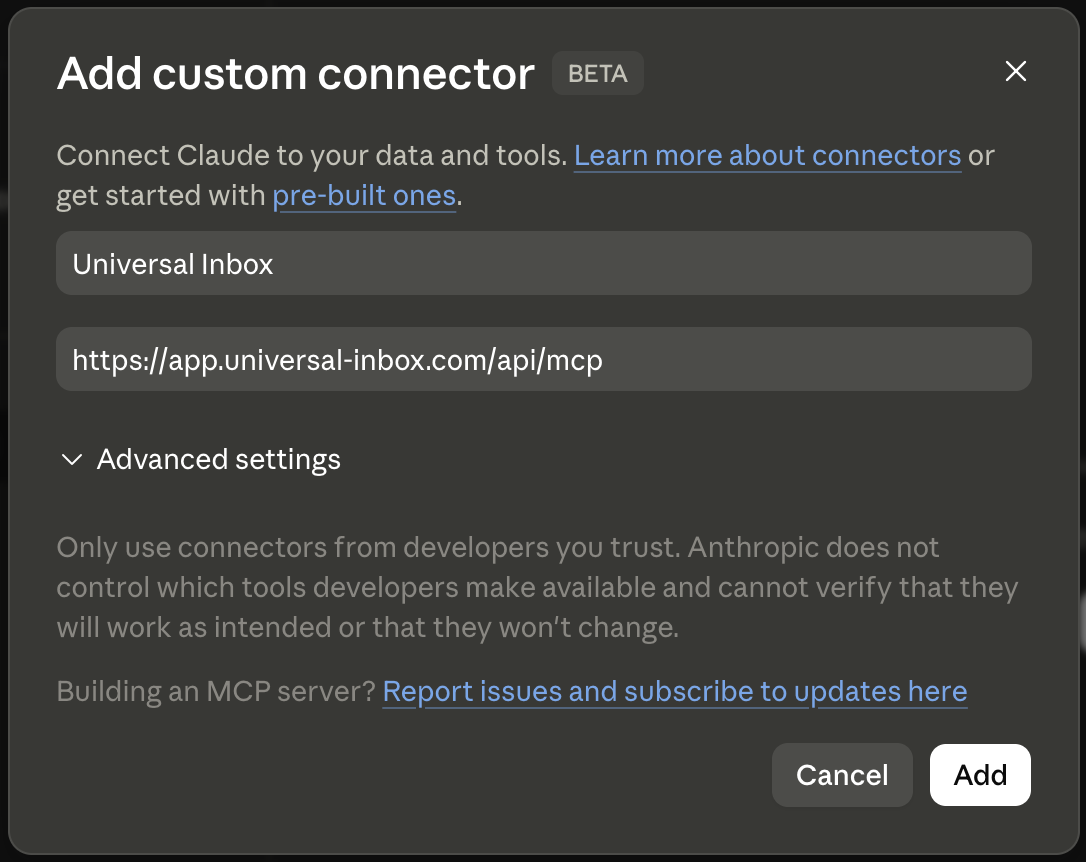
See the Claude Desktop custom connectors guide.
Codex CLI (OpenAI)
Streamable HTTP with OAuth, configured through ~/.codex/config.toml.
Edit ~/.codex/config.toml:
[mcp_servers.universal_inbox]
url = "https://app.universal-inbox.com/api/mcp"
Then run codex mcp login universal_inbox to drive the OAuth flow. Universal Inbox supports Dynamic Client Registration, so no mcp_oauth_callback_port setting is required.
The codex mcp add command only supports stdio servers, HTTP servers must be added by editing the TOML directly. See the Codex MCP documentation.
Codex Desktop (OpenAI)
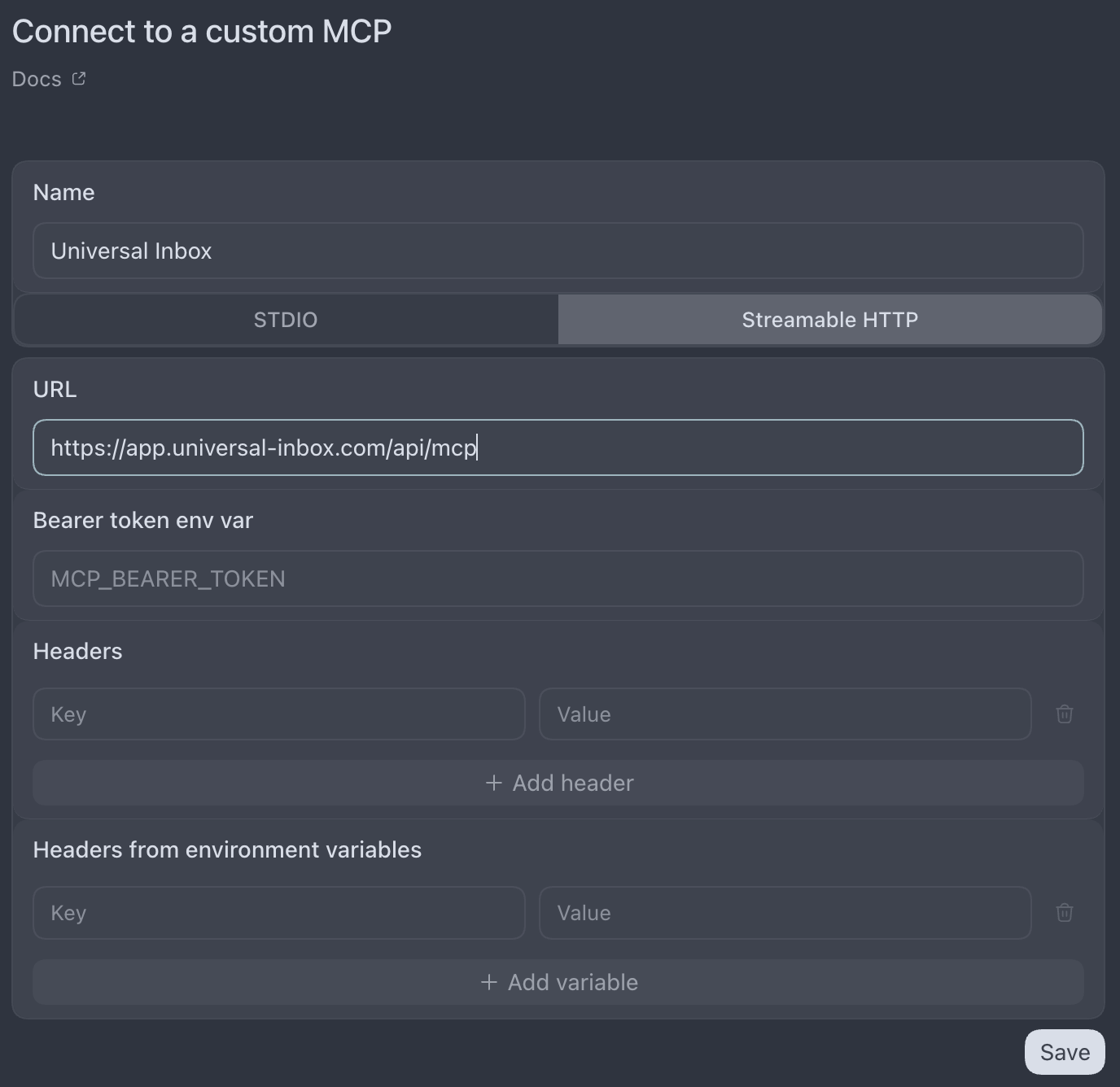
You can configure the Universal Inbox MCP server:
- Open the Settings in the Codex sidebar → MCP servers.
- Click Add server
- Select the Streamable HTTP tab
- Paste
https://app.universal-inbox.com/api/mcpinto the URL field and keep other fields empty - Click Save
- Click the Authenticate next to the
universal_inboxserver entry to complete the OAuth flow.
ChatGPT (OpenAI desktop / web)
Streamable HTTP with OAuth, configured through the ChatGPT Connectors UI. The workspace owner must enable Developer mode under the Apps settings first.
- Open ChatGPT → Settings → Apps -> Advanced settings.
- Enable Developer mode.
- From the Apps settings, click Create app.
- Paste
https://app.universal-inbox.com/api/mcpin the MCP Server URL field. - Confirm the Custom MCP server warning message and click Create.
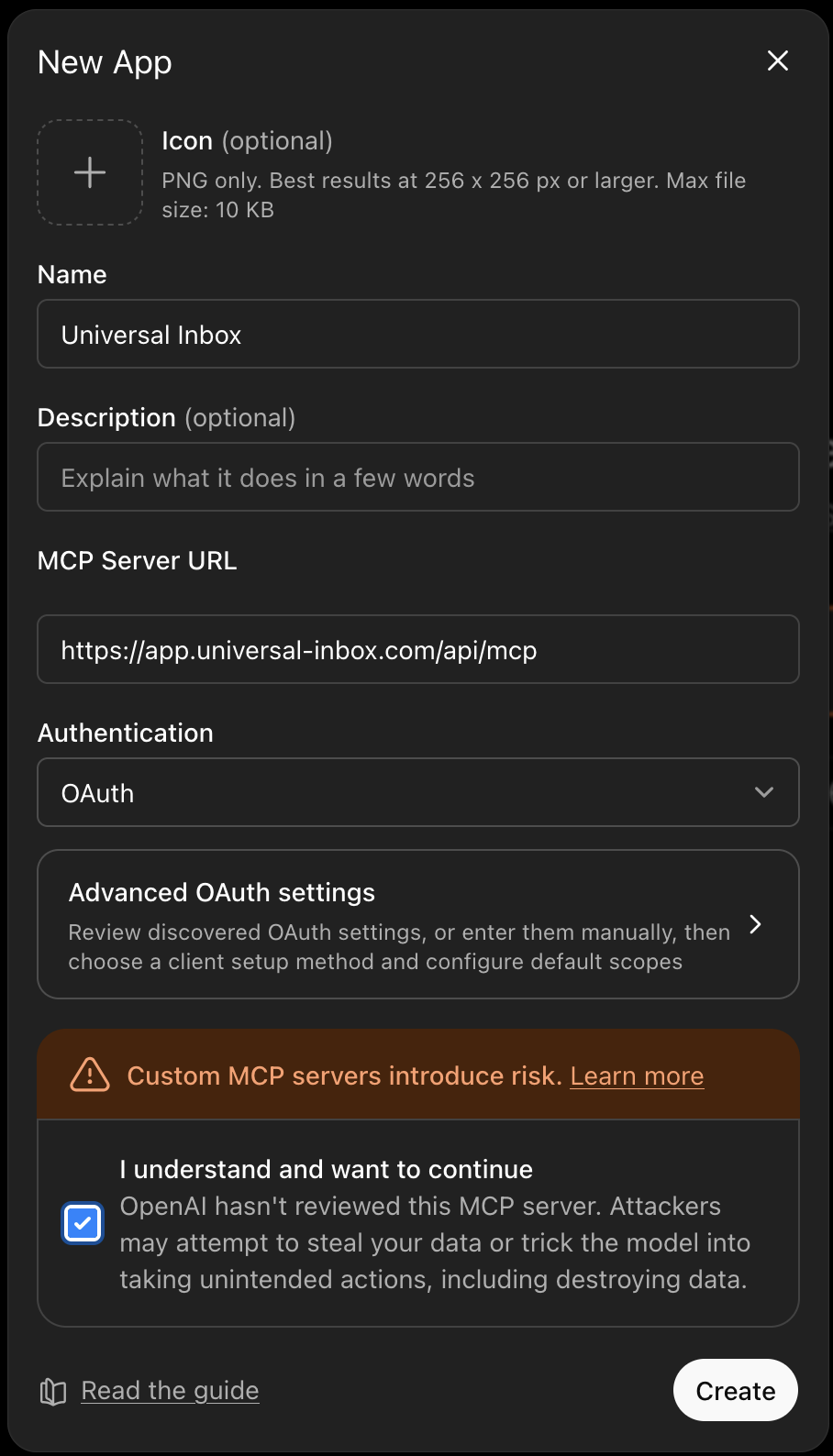
See the Developer mode and full MCP connectors in ChatGPT article.
Le Chat (Mistral AI)
Streamable HTTP with OAuth, configured through Le Chat's Custom MCP Connector form.
- Open Le Chat → Context → Connectors.
- Click Add Connector and switch to the Custom MCP Connector tab.
- Set Connector name to
universal_inbox(the identifier must have no spaces or special characters). - Paste
https://app.universal-inbox.com/api/mcpinto the Connector Server field. - Leave Description empty (or add your own) — Le Chat detects the OAuth2.1 authentication method from Universal Inbox's discovery endpoints automatically.
- Click Connect to complete the OAuth flow when your browser opens.
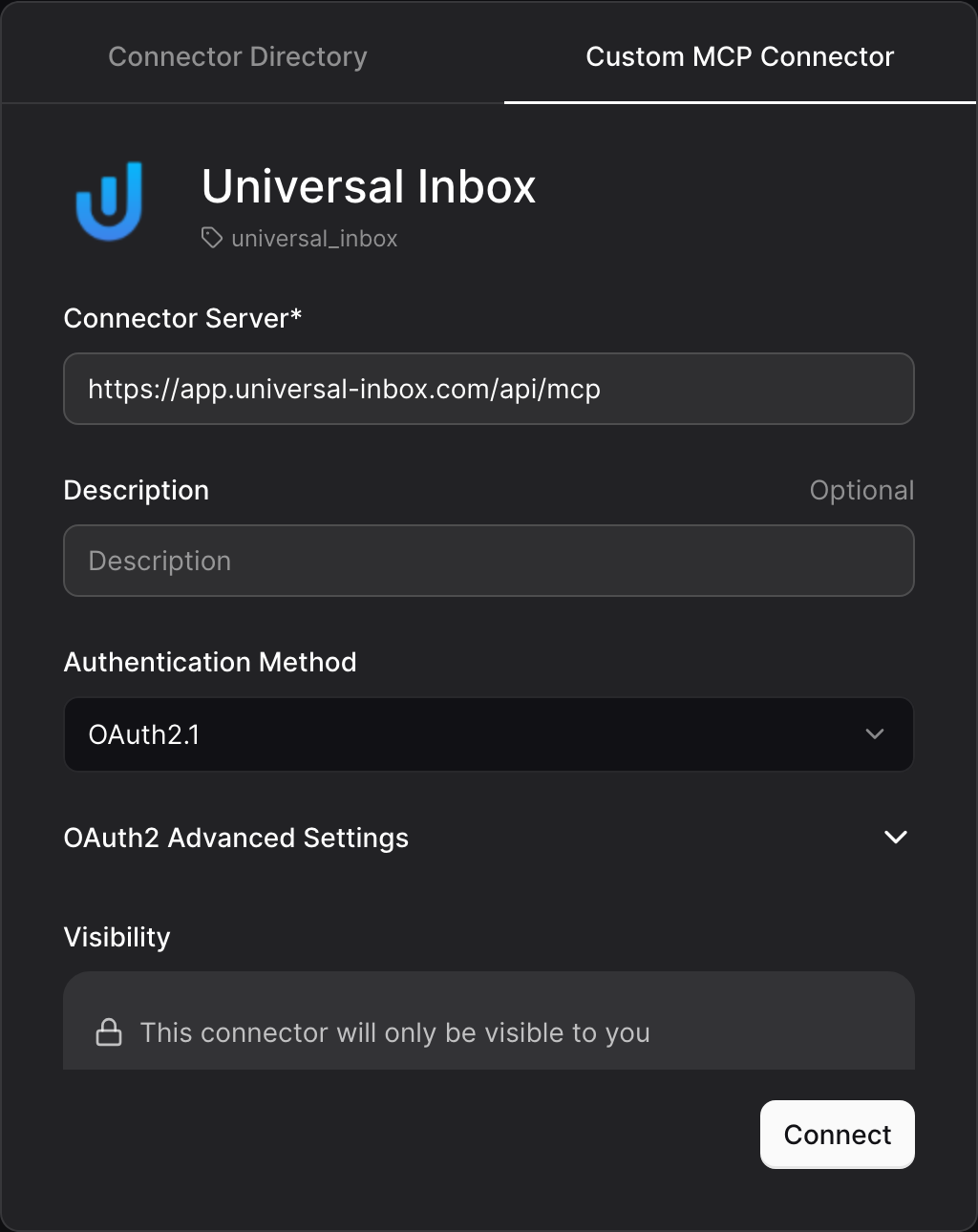
See the Le Chat MCP Connectors documentation.
What the MCP server exposes
Universal Inbox MCP is tools-only. The full set of tools is listed below, with the read/write kind flagged so an agent can reason about safety.
| Tool | Kind | Description |
|---|---|---|
list_notifications | Read | List Universal Inbox notifications with filters. Does not trigger synchronization unless trigger_sync is set. |
get_notification | Read | Fetch a single notification by ID. |
list_tasks | Read | List tasks synchronized through Universal Inbox with filters. Does not trigger synchronization unless trigger_sync is set. |
get_task | Read | Fetch a single task by ID. |
search_tasks | Read | Full-text search across synchronized tasks. |
act_on_notification | Write | Apply a single notification action: mark_read, delete, unsubscribe, or snooze_until. |
bulk_act_notifications | Write | Apply the same action to all notifications matching the given status/source filters. |
create_task_from_notification | Write | Create a task from a notification and link the two together. |
update_task | Write | Patch fields of an existing task. |
sync_notifications | Write | Synchronize notification sources immediately and return the resulting notifications. |
sync_tasks | Write | Synchronize task sources immediately and return the resulting tasks. |
Read tools do not trigger synchronization unless you explicitly ask for it. Write actions execute immediately.
Keyboard shortcuts
General Navigation
Universal Inbox provides an extensive set of keyboard shortcuts to enhance your productivity and navigate the interface efficiently. Press ? at any time to display the shortcuts.
| Shortcut | Action | Description |
|---|---|---|
? | Show keyboard shortcuts | Displays this list of shortcuts |
Esc | Close modal/Cancel | Closes the currently open modal or cancels the current action |
List Navigation
| Shortcut | Action | Description |
|---|---|---|
Arrow Down | Next item | Move selection to the next item in the list |
Arrow Up | Previous item | Move selection to the previous item in the list |
Notification Actions
| Shortcut | Action | Description |
|---|---|---|
d | Delete | Remove notification until next update |
u | Unsubscribe | Silence notification and future updates |
s | Snooze | Postpone notification for later handling |
p | Create task | Convert notification into a task |
t | Create task with defaults | Convert notification into a task using default parameters |
l | Link to task | Link notification to existing task |
Enter | View notification source | Open notification in source tool |
Notification/Task Preview
| Shortcut | Action | Description |
|---|---|---|
e | Expand/Collapse | Expand/collapse the notification details/thread |
j | Scroll down | Scroll down the notification details/thread |
k | Scroll up | Scroll up the notification details/thread |
Space | Scroll down page | Scroll down the notification details/thread |
Task Actions
| Shortcut | Action | Description |
|---|---|---|
c | Complete task | Mark the selected task as complete |
Calendar Integration
| Shortcut | Action | Description |
|---|---|---|
y | Accept invitation | Accept calendar invitation |
m | Tentative/Maybe | Respond maybe to calendar invitation |
n | Decline invitation | Decline calendar invitation |
API Usage
Overview
Universal Inbox provides a RESTful API that allows third-party tools like Raycast to interact with notifications. For AI agent integration via MCP, see Universal Inbox with AI Agents.
Authentication
OAuth 2.1
Universal Inbox provides an OAuth 2.1 authorization server for programmatic access. This is the recommended authentication method for MCP clients and third-party applications. See the AI agents documentation for details on the OAuth flow.
API keys
API keys provide a simpler authentication method for tools that do not support OAuth.
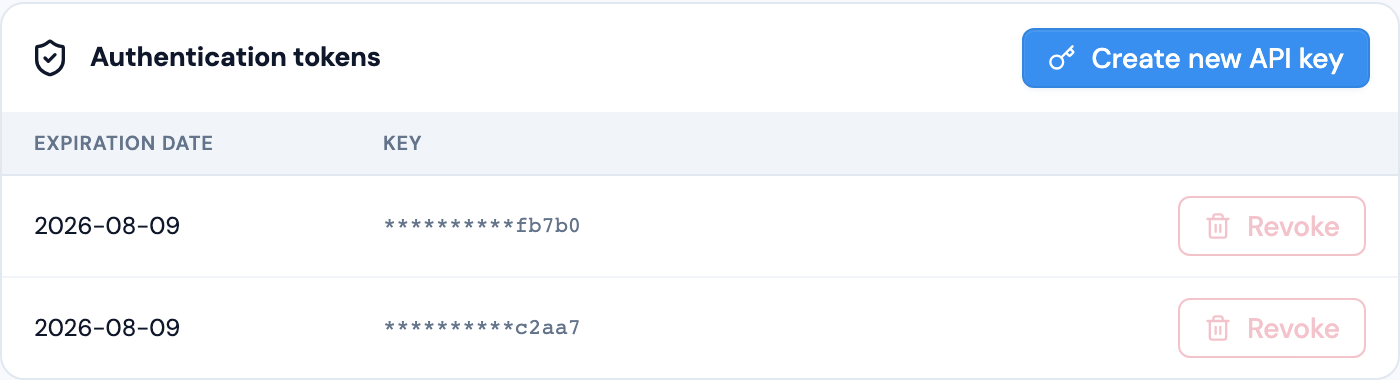
From the user profile screen:
- click on the "Create new API key" button. This will generate a new API key.
- Copy the key and store it securely. You will not be able to see it again.
Use the API key as a Bearer token in the Authorization header:
Authorization: Bearer <your-api-key>
The same Security page lists all the API keys you have created and lets you revoke any key you no longer need. See Security & Privacy.
Universal Inbox Raycast Extension
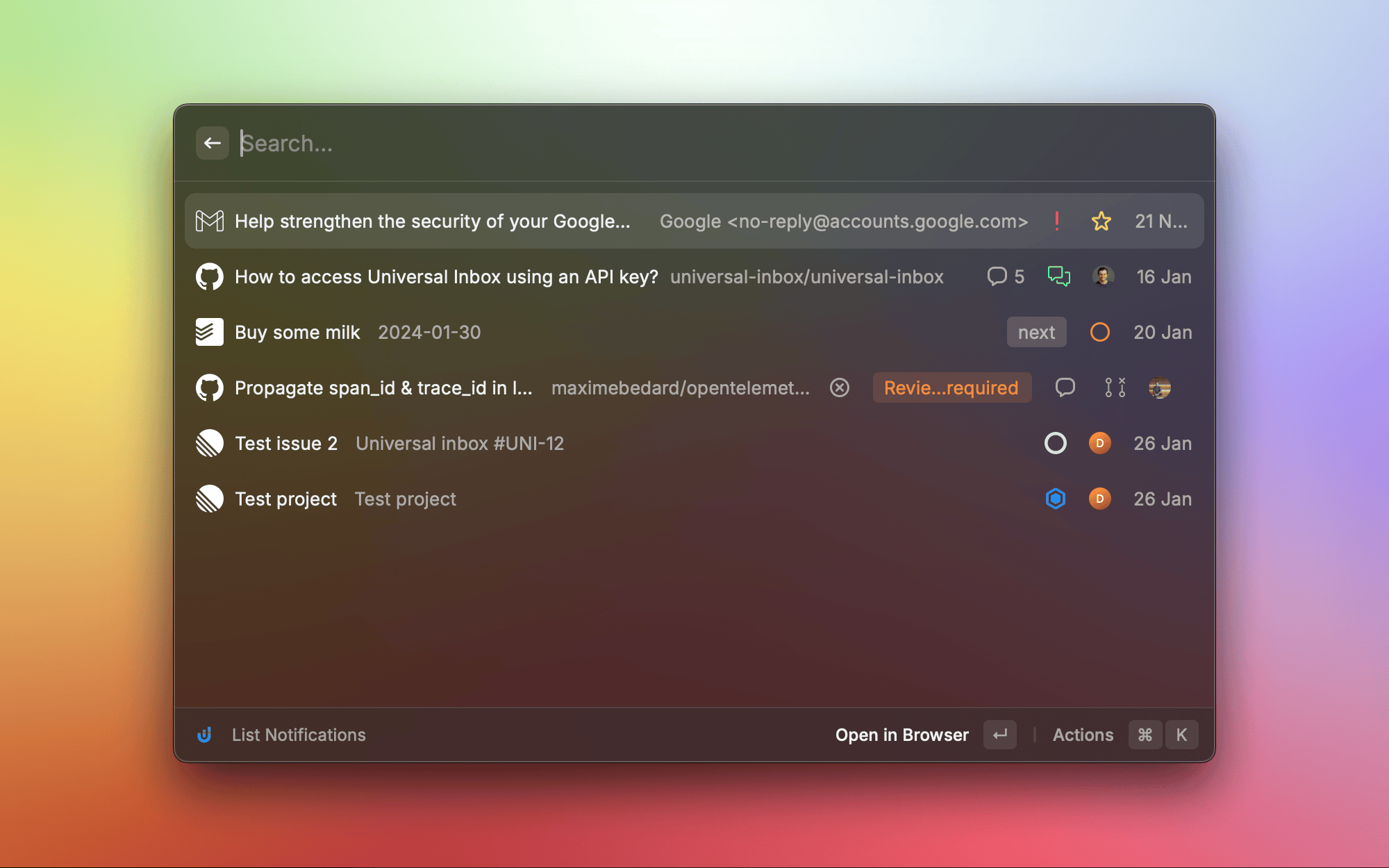
Universal Inbox integrates seamlessly with Raycast, allowing you to access your notifications and perform actions without leaving your keyboard-driven workflow.
What is the Raycast Extension?
The Universal Inbox Raycast extension enhances your productivity by providing:
- Quick access to your Universal Inbox notifications directly from Raycast
- Keyboard-driven actions to process notifications efficiently
- Seamless integration with your existing Raycast workflow
How It Works
The Raycast extension connects to your Universal Inbox account using an API key and allows you to:
- View your inbox notifications in a clean Raycast interface
- Perform all essential notification actions without opening your browser
- Process notifications quickly using keyboard shortcuts
Setup Instructions
To install and configure the Universal Inbox Raycast extension:
- Open Raycast and navigate to the Extensions Store
- Search for "Universal Inbox" and click Install
- Generate an API key from Universal Inbox (see API Usage for detailed instructions)
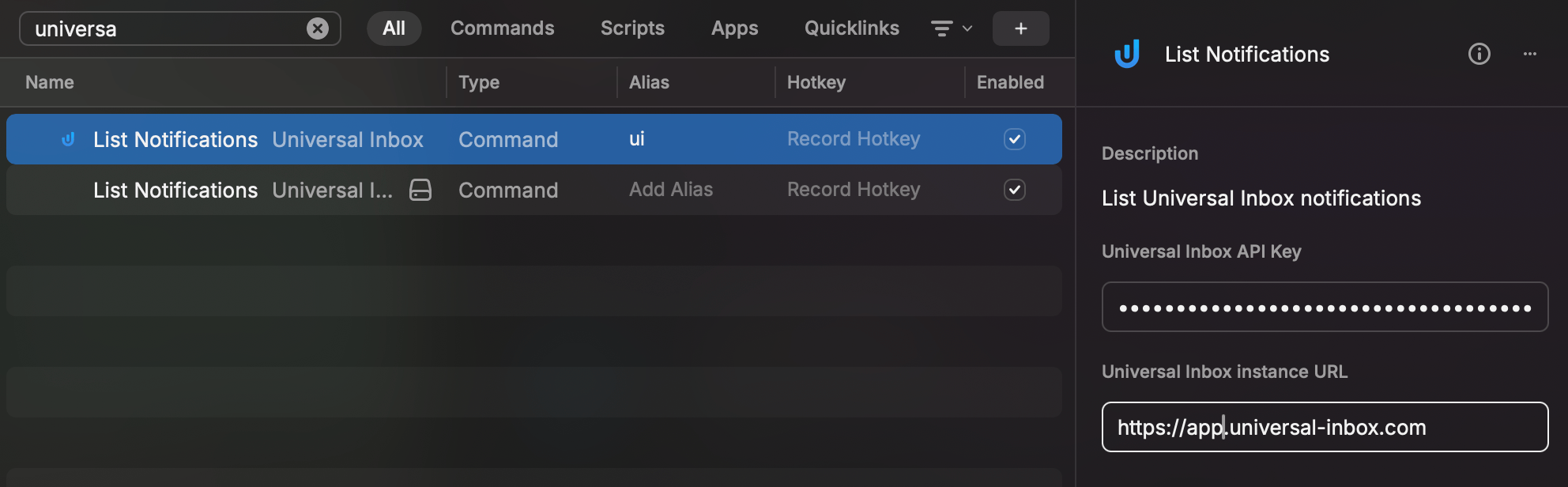
- Open the Universal Inbox extension in Raycast
- Paste your API key when prompted and enter the Universal Inbox instance URL:
https://app.universal-inbox.com - Click Save
Available Actions
The Raycast extension supports Universal Inbox actions:
- List Notifications: Browse through all your notifications
- Process Notifications: Delete, snooze, or unsubscribe from notifications
- Task Management: Create tasks from notifications or link to existing tasks
Keyboard Shortcuts
Maximize your efficiency with these keyboard shortcuts:
| Shortcut | Action |
|---|---|
Enter | Open the selected notification in the inbox screen |
Ctrl+d | Delete the selected notification |
Ctrl+u | Unsubscribe from the selected notification |
Ctrl+s | Snooze the selected notification |
Ctrl+t | Create a task from the selected notification |
Ctrl+l | Link the selected notification to an existing task |