Getting Started with Universal Inbox
Logging In to Your Account
If you already have a Universal Inbox account, log in here using the same authentication method you used when creating your account.
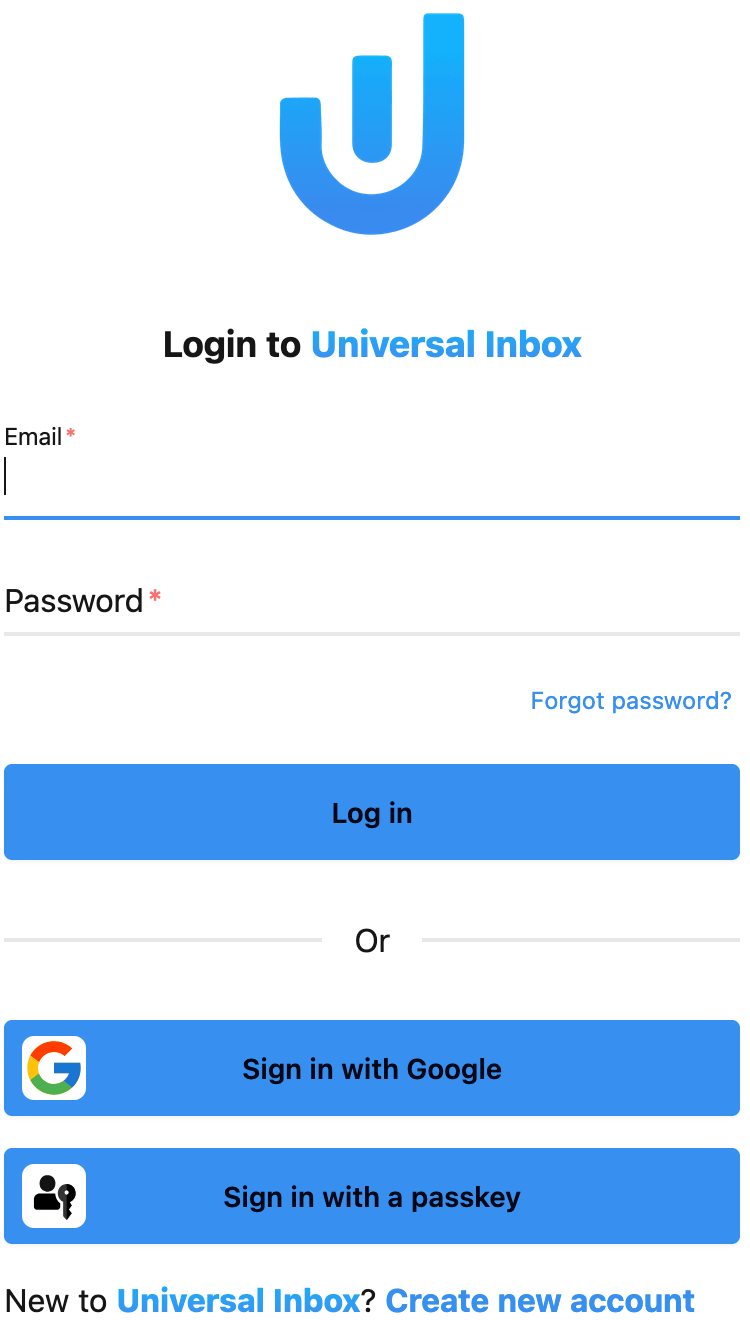
You can add multiple authentication methods to your account (e.g. password + Google + passkey) from your user profile page. See Managing Authentication Methods for details.
Creating a New Account
If you're new to Universal Inbox, click "Create a new account" from the login page.
Universal Inbox offers three secure methods to create your account. Choose the option that best suits your preferences:
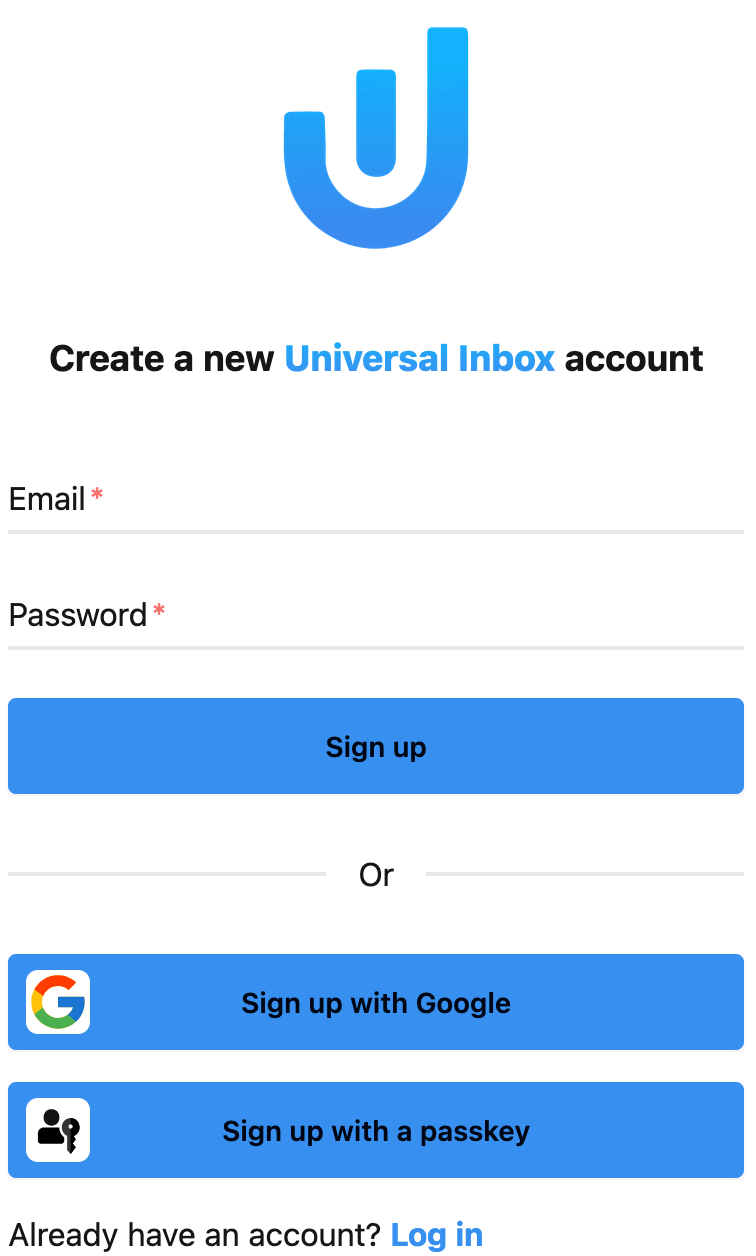
1. Email-Based Registration
Create an account with your email address:
- Enter your email address
- Create a strong password
- Click "Sign up"
You'll need to verify your email address before accessing Universal Inbox. Check your inbox for a validation link and click it to complete the registration process.
2. Sign Up with Google
Use your existing Google account for faster registration:
- Click "Sign up with Google"
- Select your Google account (or sign in if needed)
- Review and accept the permissions
3. Passkey Registration (Enhanced Security)
For passwordless authentication with enhanced security:
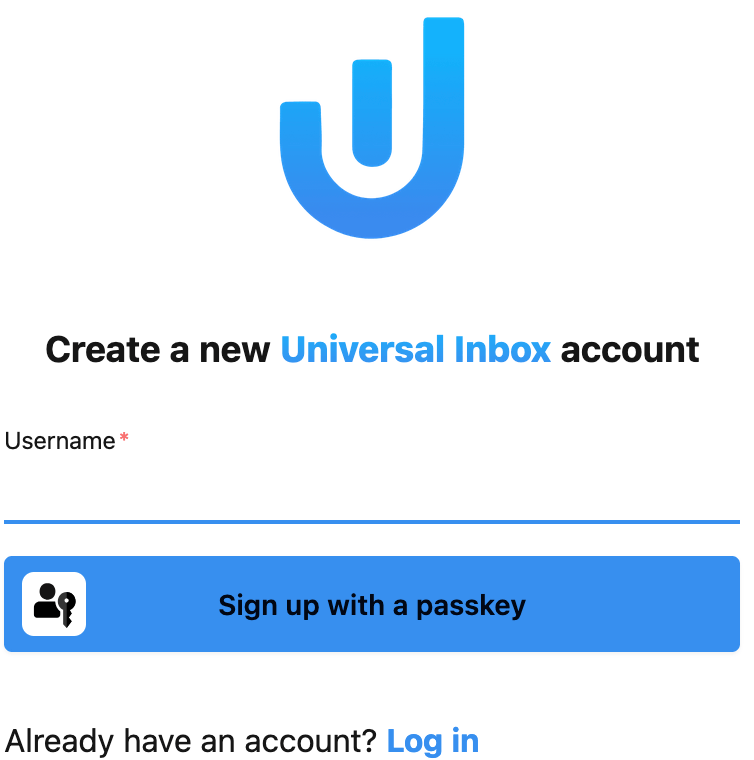
- From the login page, click "Sign up with a passkey"
- Enter a unique username
- Click "Sign up with a passkey"
- Your device will prompt you to create a passkey using one of these methods:
- Fingerprint
- Face recognition
- PIN
- Other biometric methods supported by your device
Managing Authentication Methods
Once your account is created, you can add or remove authentication methods from the Authentication methods card on your user profile page.
Adding an Authentication Method
You can add any of the following methods to your existing account:
- Password: Click "Add password" and enter a new password (minimum 6 characters)
- Google: Click "Link Google account" to associate your Google account (only available if Google authentication is enabled on the instance)
- Passkey: Click "Add passkey", enter a username, and follow your device's biometric prompt
Removing an Authentication Method
Each authentication method can be removed by clicking the delete icon next to it.
You must always keep at least one authentication method on your account. The delete button is hidden when only one method remains.
What's Next?
After successfully creating your account, you'll be guided through the process of connecting your tools and services to Universal Inbox.