Universal Inbox with AI Agents
Universal Inbox can be used from AI agents through its remote MCP endpoint.
Universal Inbox MCP is implemented as a standard remote HTTP MCP server. MCP-capable clients such as Claude Code, Claude Desktop, Codex, ChatGPT, and Le Chat handle the transport details automatically.
MCP endpoint
Use your Universal Inbox instance URL with the /api/mcp path:
- Hosted Universal Inbox:
https://app.universal-inbox.com/api/mcp - Self-hosted Universal Inbox:
https://<your-instance>/api/mcp
Authentication
Universal Inbox MCP authenticates clients via OAuth 2.1.
OAuth 2.1
Universal Inbox implements an OAuth 2.1 authorization server following the MCP authorization specification. MCP clients that support OAuth (Claude Code, Claude Desktop, Codex, ChatGPT, Le Chat) authenticate automatically using the standard OAuth flow.
The server provides discovery endpoints for automatic configuration:
- Protected Resource Metadata:
GET /.well-known/oauth-protected-resource - Authorization Server Metadata:
GET /.well-known/oauth-authorization-server
The OAuth flow uses:
- Dynamic Client Registration at
POST /api/oauth2/register - Authorization Code with PKCE (S256) at
GET /api/oauth2/authorize - Token exchange and refresh at
POST /api/oauth2/token
Access tokens are scoped with read and write permissions. Refresh tokens are rotated on each use for security.
MCP clients that support the MCP authorization spec will handle this flow automatically, no manual configuration is needed beyond providing the MCP server URL.

You can review every MCP/OAuth client that has been authorized against your account, and revoke any of them, from the Security & Privacy page.
Client setup
The snippets below use the placeholder https://app.universal-inbox.com/api/mcp, readers self-hosting should substitute https://<your-instance>/api/mcp.
Claude Code (Anthropic CLI)
Streamable HTTP with OAuth, handled automatically.
claude mcp add --transport http universal-inbox \
  https://app.universal-inbox.com/api/mcp
Then run /mcp inside Claude Code and pick Authenticate for the universal-inbox server, a browser opens, the OAuth flow completes, and tokens are stored and refreshed automatically.
See the Claude Code MCP documentation for the full CLI reference.
Claude Desktop (Anthropic app)
Streamable HTTP with OAuth, configured through the in-app Connectors UI.
- Open Claude Desktop → Customize -> Connectors.
- Click Add Connector (+ icon) -> Add custom connector.
- Paste
https://app.universal-inbox.com/api/mcpinto the URL field. - Click Add. Claude Desktop launches the OAuth flow automatically; sign in with your Universal Inbox credentials when the browser opens.
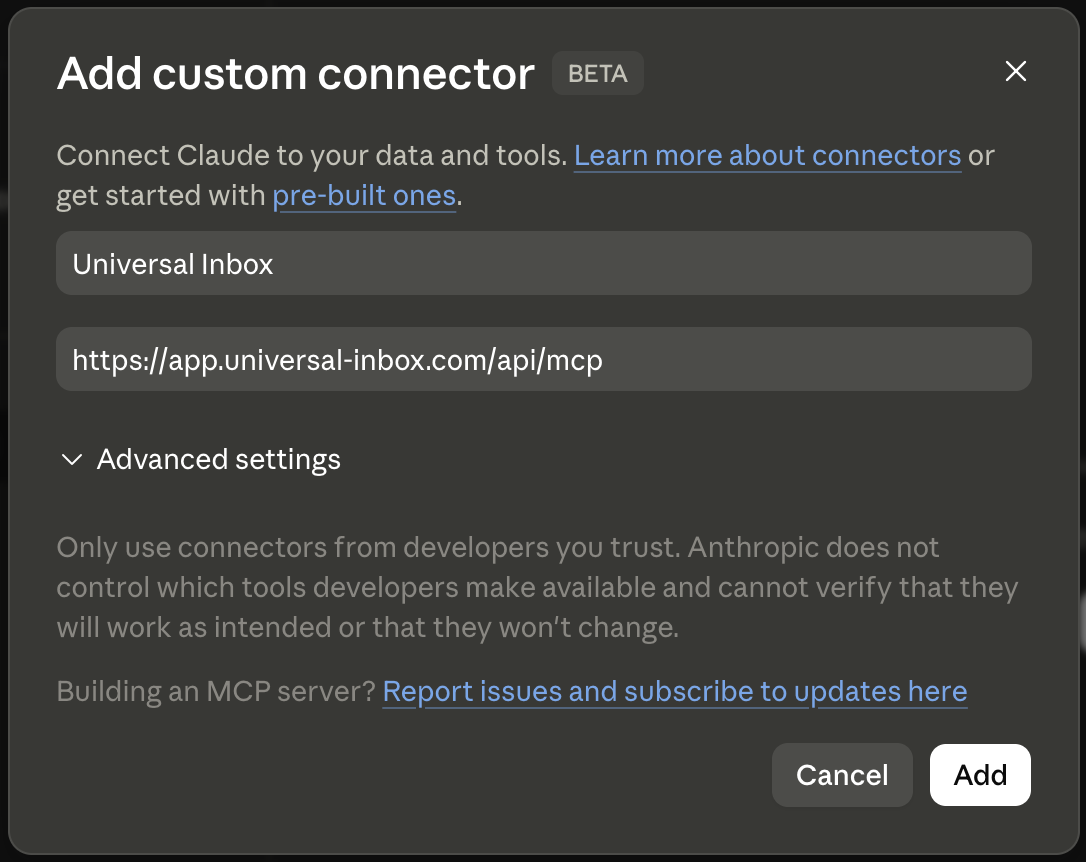
See the Claude Desktop custom connectors guide.
Codex CLI (OpenAI)
Streamable HTTP with OAuth, configured through ~/.codex/config.toml.
Edit ~/.codex/config.toml:
[mcp_servers.universal_inbox]
url = "https://app.universal-inbox.com/api/mcp"
Then run codex mcp login universal_inbox to drive the OAuth flow. Universal Inbox supports Dynamic Client Registration, so no mcp_oauth_callback_port setting is required.
The codex mcp add command only supports stdio servers, HTTP servers must be added by editing the TOML directly. See the Codex MCP documentation.
Codex Desktop (OpenAI)
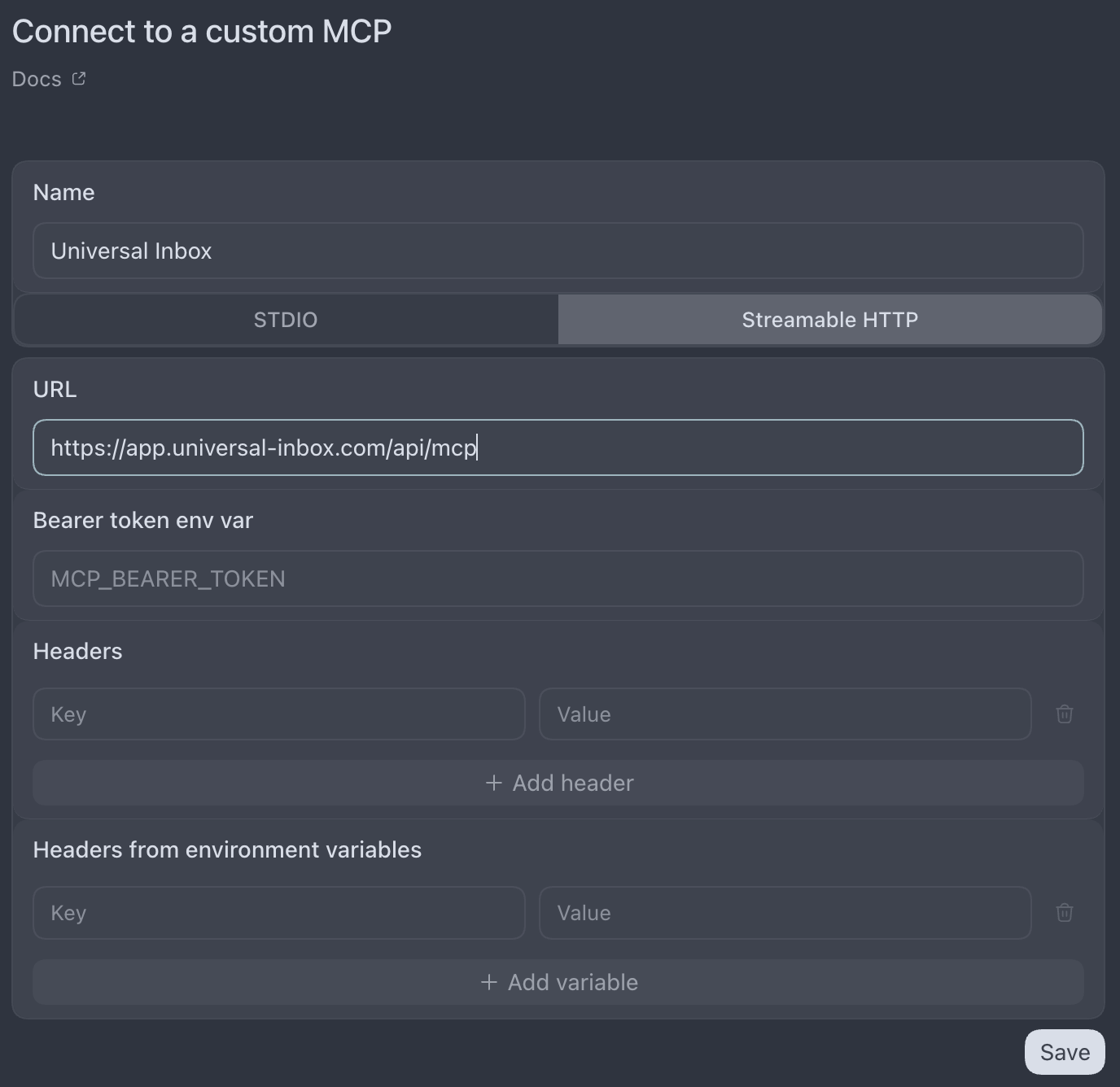
You can configure the Universal Inbox MCP server:
- Open the Settings in the Codex sidebar → MCP servers.
- Click Add server
- Select the Streamable HTTP tab
- Paste
https://app.universal-inbox.com/api/mcpinto the URL field and keep other fields empty - Click Save
- Click the Authenticate next to the
universal_inboxserver entry to complete the OAuth flow.
ChatGPT (OpenAI desktop / web)
Streamable HTTP with OAuth, configured through the ChatGPT Connectors UI. The workspace owner must enable Developer mode under the Apps settings first.
- Open ChatGPT → Settings → Apps -> Advanced settings.
- Enable Developer mode.
- From the Apps settings, click Create app.
- Paste
https://app.universal-inbox.com/api/mcpin the MCP Server URL field. - Confirm the Custom MCP server warning message and click Create.
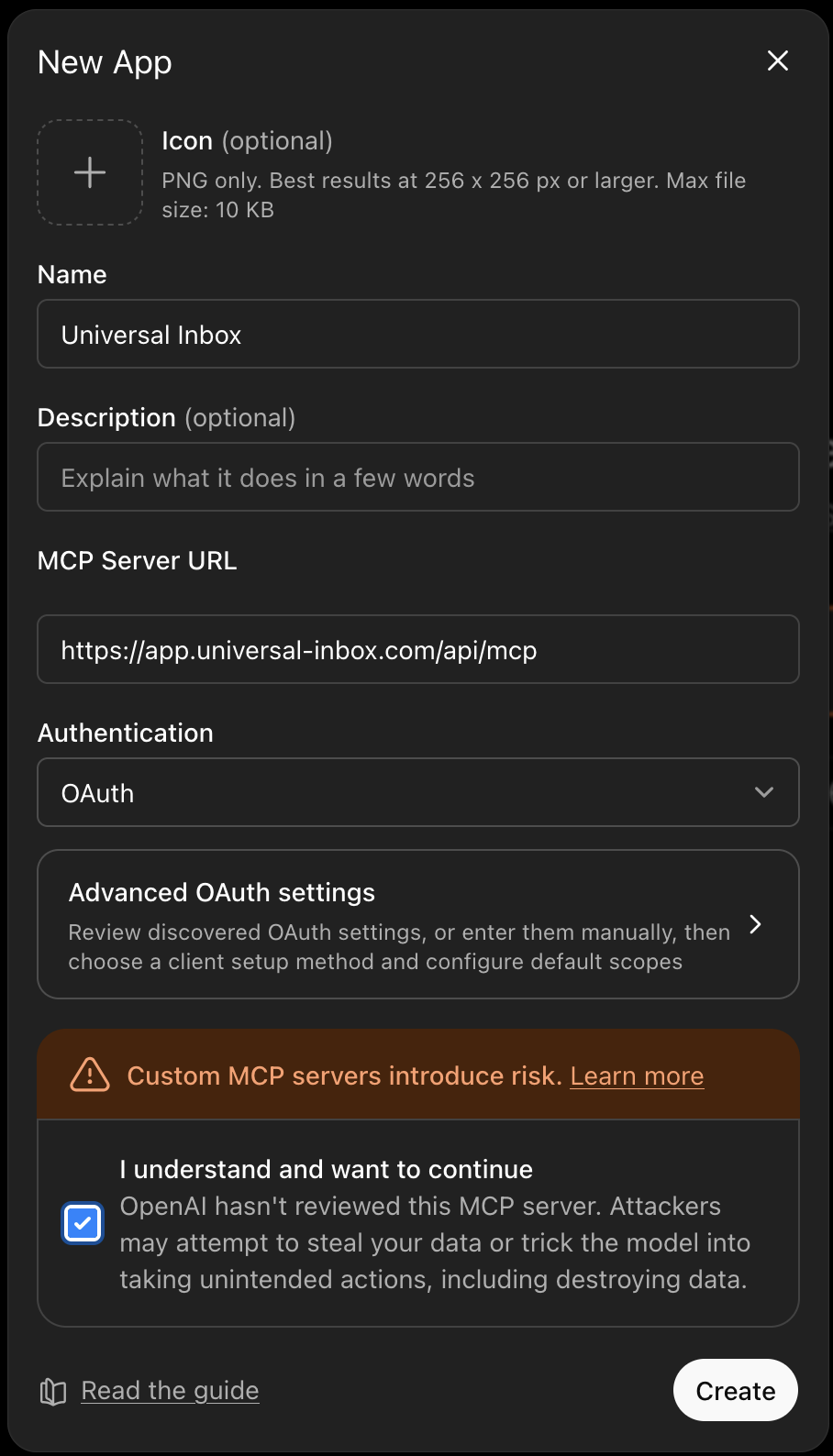
See the Developer mode and full MCP connectors in ChatGPT article.
Le Chat (Mistral AI)
Streamable HTTP with OAuth, configured through Le Chat's Custom MCP Connector form.
- Open Le Chat → Context → Connectors.
- Click Add Connector and switch to the Custom MCP Connector tab.
- Set Connector name to
universal_inbox(the identifier must have no spaces or special characters). - Paste
https://app.universal-inbox.com/api/mcpinto the Connector Server field. - Leave Description empty (or add your own) — Le Chat detects the OAuth2.1 authentication method from Universal Inbox's discovery endpoints automatically.
- Click Connect to complete the OAuth flow when your browser opens.
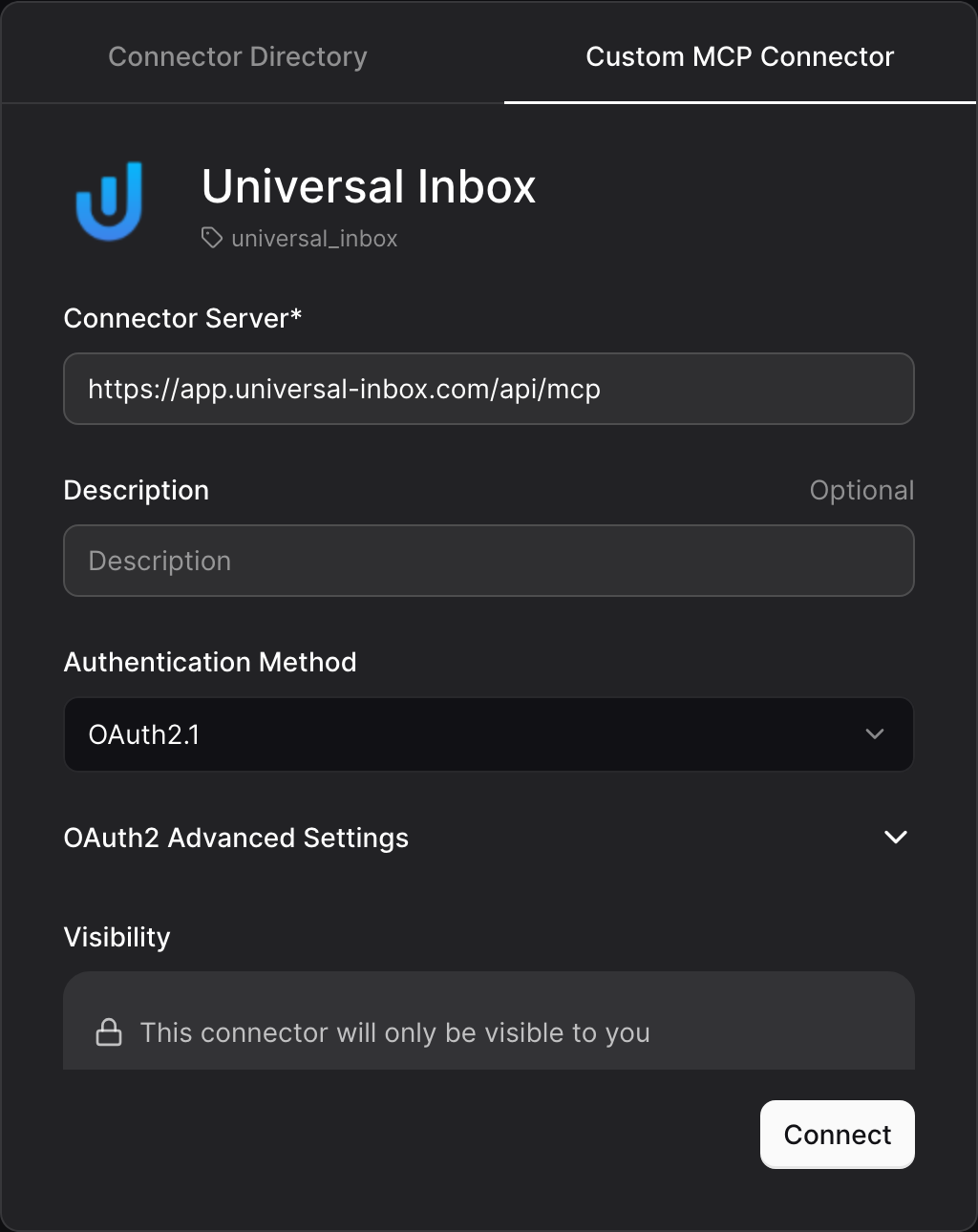
See the Le Chat MCP Connectors documentation.
What the MCP server exposes
Universal Inbox MCP is tools-only. The full set of tools is listed below, with the read/write kind flagged so an agent can reason about safety.
| Tool | Kind | Description |
|---|---|---|
list_notifications | Read | List Universal Inbox notifications with filters. Does not trigger synchronization unless trigger_sync is set. |
get_notification | Read | Fetch a single notification by ID. |
list_tasks | Read | List tasks synchronized through Universal Inbox with filters. Does not trigger synchronization unless trigger_sync is set. |
get_task | Read | Fetch a single task by ID. |
search_tasks | Read | Full-text search across synchronized tasks. |
act_on_notification | Write | Apply a single notification action: mark_read, delete, unsubscribe, or snooze_until. |
bulk_act_notifications | Write | Apply the same action to all notifications matching the given status/source filters. |
create_task_from_notification | Write | Create a task from a notification and link the two together. |
update_task | Write | Patch fields of an existing task. |
sync_notifications | Write | Synchronize notification sources immediately and return the resulting notifications. |
sync_tasks | Write | Synchronize task sources immediately and return the resulting tasks. |
Read tools do not trigger synchronization unless you explicitly ask for it. Write actions execute immediately.