The Synced Tasks Screen
Overview
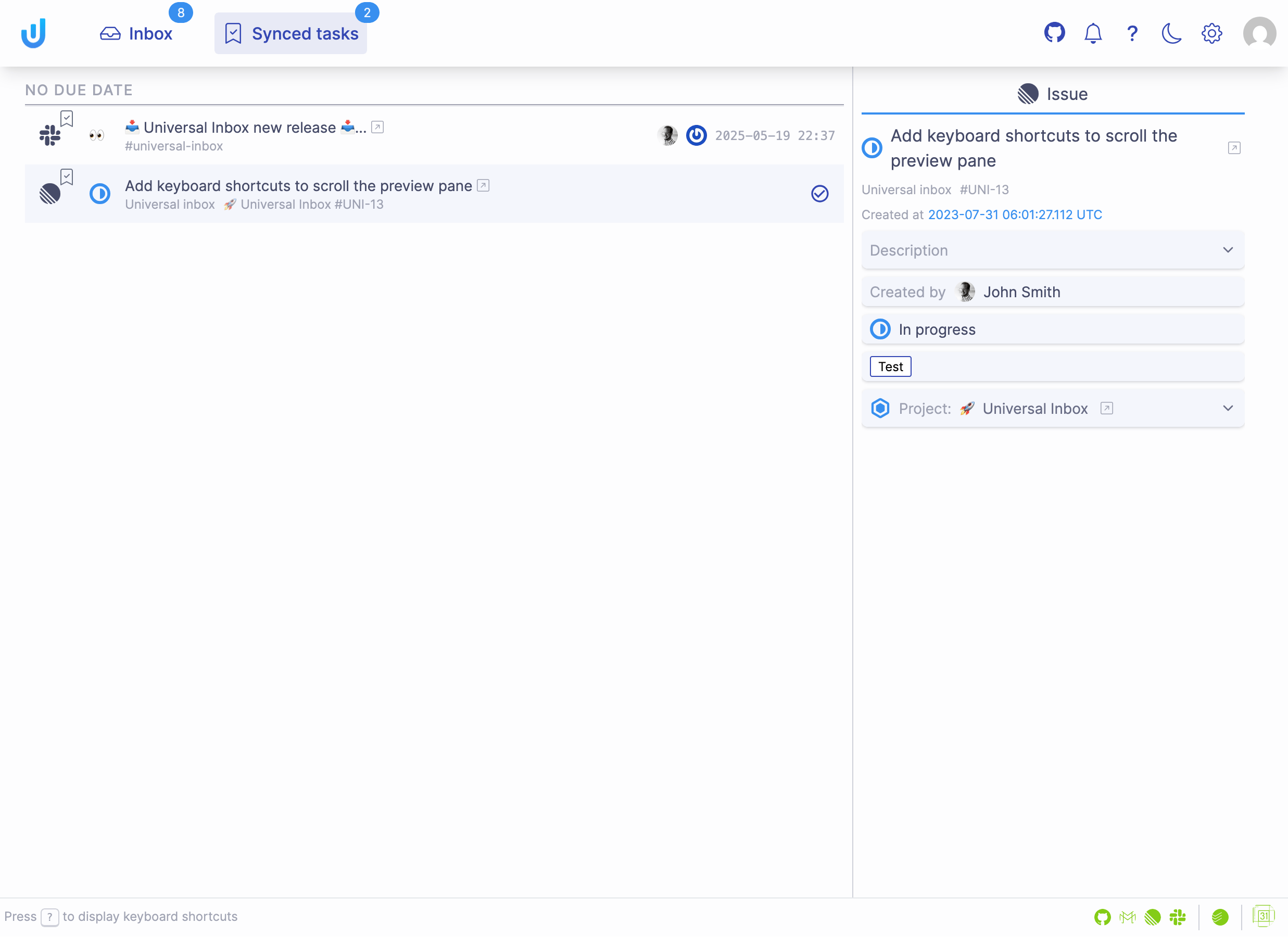
The Synced Tasks screen displays all tasks synchronized between your connected tools and your task management system. It follows the same dual-pane layout as the Inbox screen, but optimized specifically for task management.
Tasks List (Left Pane)
Each task entry includes:
- Source: Origin of the task (Linear, Slack, etc.)
- Type: Format of the task (Linear issue, Slack message reaction, etc.)
- Title: Main subject with contextual details
- Indicators: Additional information like author, priority, and other metadata
- Timestamp: When the task was last updated
Preview Pane (Right Side)
The preview pane displays comprehensive details about the selected task, allowing you to view its content and context without switching applications.
Task Lifecycle
Universal Inbox maintains continuous synchronization between three points: source tools, your task management tool, and the Universal Inbox interface.
Automatic Task Creation
When these events occur, Universal Inbox automatically creates tasks in your task management tool:
- A Linear issue is assigned to you
- You add a specific reaction to a Slack message
Completing Tasks
Mark as Complete: The primary action available for tasks is completion. When you complete a task in Universal Inbox, this status is synchronized across all connected systems:
- The source tool (e.g., Linear issue will be closed)
- Your task management tool (e.g., Todoist task will be completed)
- Universal Inbox interface
Configuration & Documentation
- Setup Instructions: For detailed configuration options, see Linear Integration or Slack Integration.
- Technical Details: To learn more about the synchronization process, visit the Synchronizing Tasks page.
Keyboard Shortcuts
Press ? anytime to display available keyboard shortcuts for faster navigation and task management.
For the complete reference of all keyboard shortcuts, visit the Keyboard Shortcuts page.