Slack Integration
The Slack integration for Universal Inbox provides multiple ways to track important Slack content and convert it into tasks. This integration helps you ensure that important messages don't get lost in the stream of Slack conversations.
Supported Slack Features
Universal Inbox connects with Slack through two different mechanisms. For each mechanism, you can choose to either receive items as notifications or synchronize them as tasks in your task management tool.
1. Message Reactions
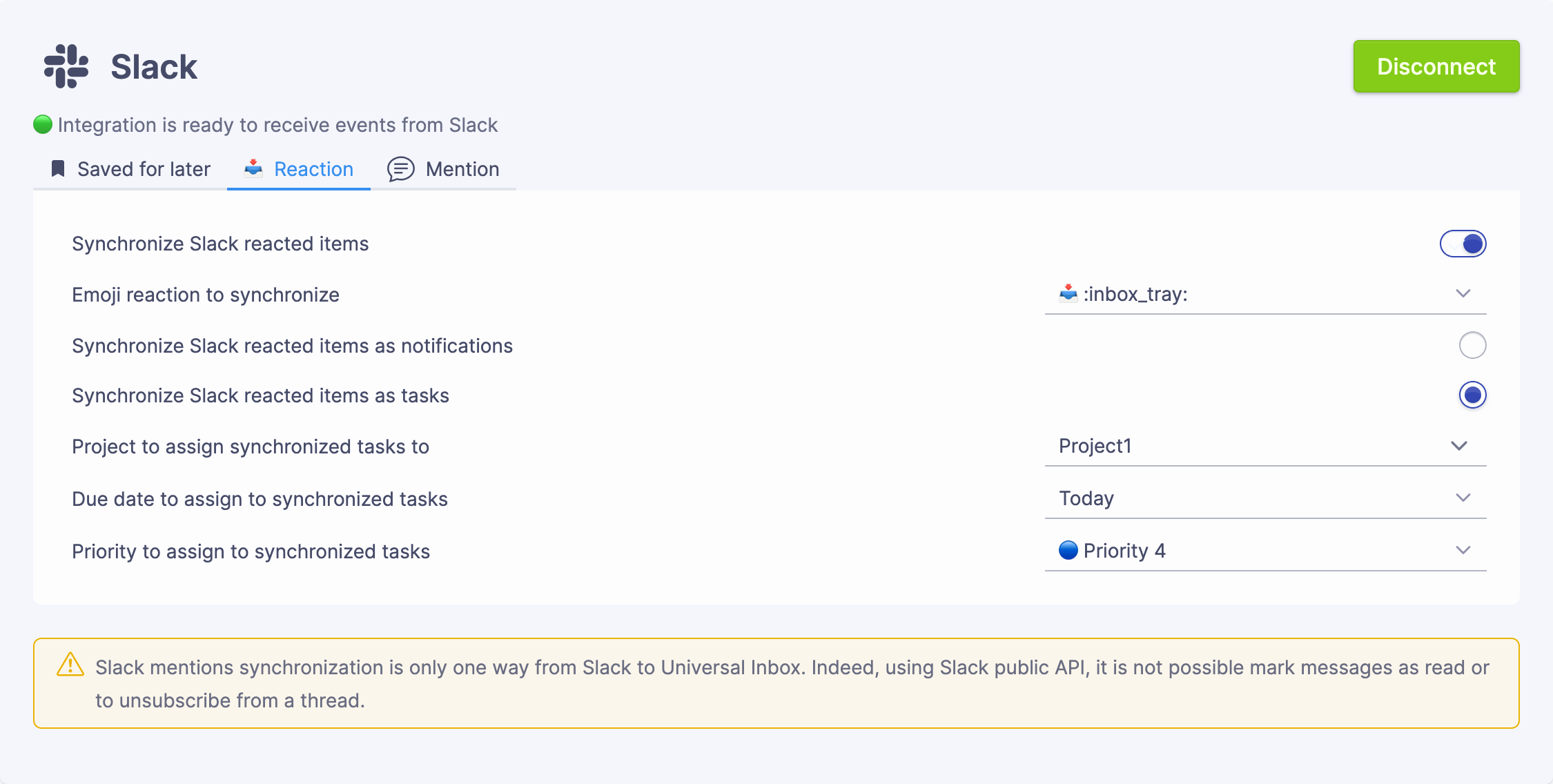
Specific emoji reactions can trigger task creation or a new notification. When you react to a message with your designated emoji, Universal Inbox can:
- Appear in your Universal Inbox notification feed
- Be converted to tasks in your task management tool
2. Message Mentions
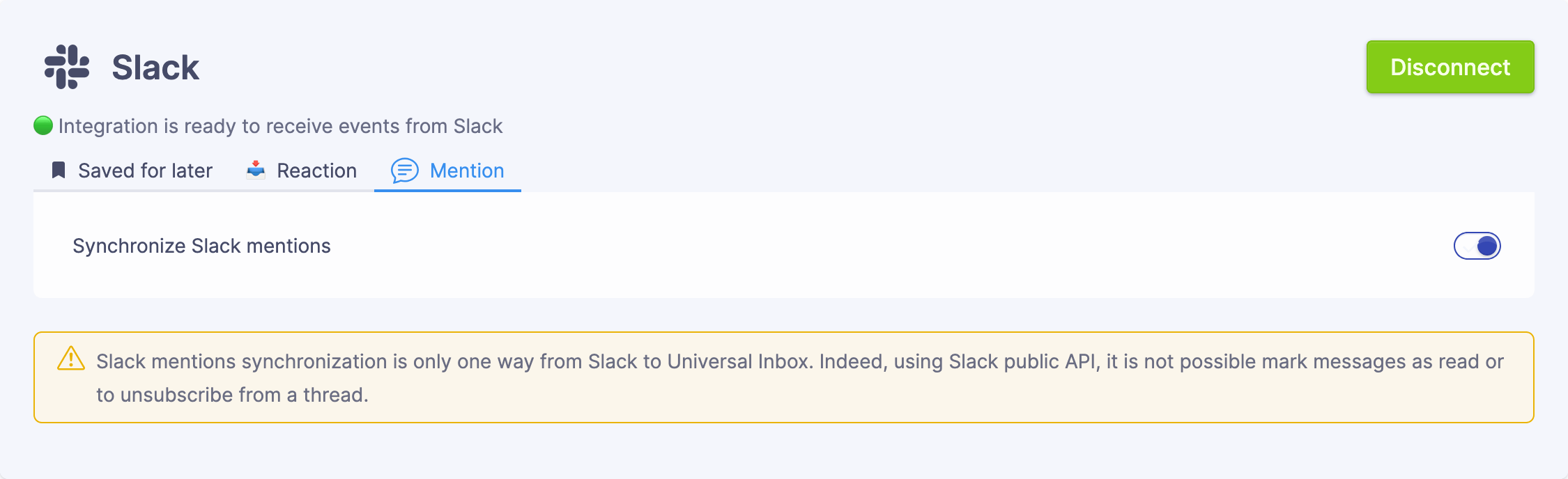
Messages where you're mentioned (@username or @groupname) can be tracked in Universal Inbox, helping you:
- Keep track of requests and questions directed to you
- Ensure you don't miss important mentions across multiple channels
Configuration Options
Each Slack integration component has its own settings:
Message Reactions
- Reaction Emoji: Select which emoji reaction will trigger synchronization. The picker is searchable — type part of an emoji name (
eyes,bookmark,white_check_mark…) and the dropdown shows the matching glyph next to each shortcode so you can confirm visually before committing. - Completion reaction emoji (optional): When enabled, Universal Inbox posts a second emoji on the source Slack message at the moment you complete the associated task. The trigger emoji (e.g.
eyes) marks "this needs to become a task", and the completion emoji (e.g.white_check_mark) marks "this task is done" — the two together create a visible audit trail in the channel.
You must choose one of the following synchronization methods:
- Notification Synchronization: Messages with your chosen reaction appear in your Universal Inbox notification feed
- Task Synchronization: Messages with your chosen reaction are synchronized as tasks in your task management tool
- Project Assignment: Optionally assign tasks to a specific project
- Due Date: Set a default due date for tasks created from reactions
- Priority: Set a default priority (P1–P4) for the new task
- Task manager: If both Todoist and TickTick are connected, pick which one receives Slack-reaction tasks
Message Mentions
Unlike the other integration options, Message Mentions can only be synchronized as notifications:
- Notification Synchronization: Messages mentioning you appear in your Universal Inbox notification feed
This allows you to keep track of conversations where you're mentioned.
You can enable any combination of these Slack integrations based on your workflow needs. For example, you might only want to use the reaction feature without tracking mentions.
Available Actions
With the Slack integration, you can:
- View reactions and mentions in one place
- Convert these items into tasks with proper due dates
- Complete tasks directly from Universal Inbox
Browser Extension Bridge
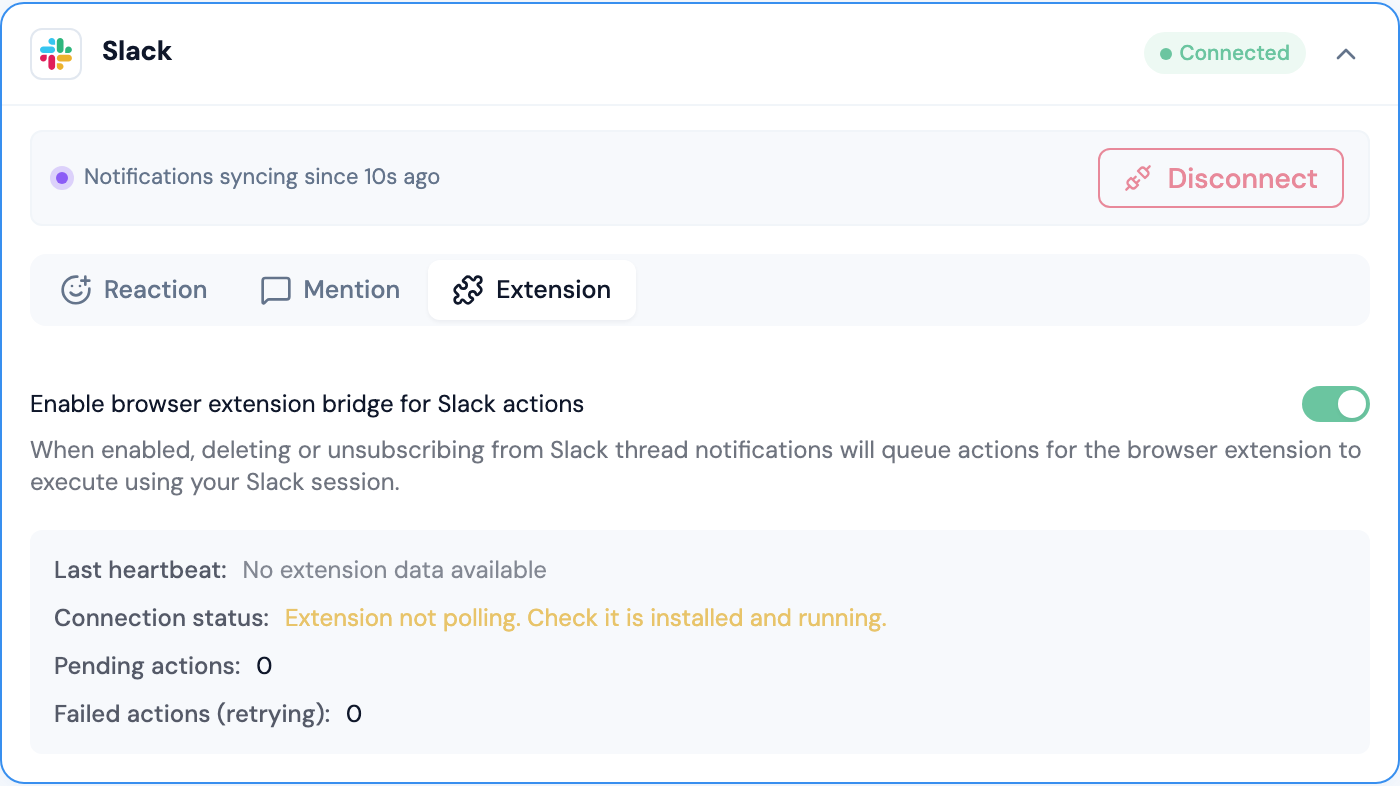
For Slack thread notifications (from mentions), you can enable the browser extension bridge to propagate delete and unsubscribe actions back to Slack. This enables 2-way sync between Universal Inbox and Slack threads, which isn't possible through Slack's public API alone.
Extension status indicators
Once the bridge is enabled, the Extension tab surfaces a small status panel so you can tell at a glance whether the extension is wired up correctly:
- Connection status:
- Extension not polling, the browser extension isn't installed or isn't running. Install/launch it and reload the Slack tab.
- Polling but no Slack tab detected, the extension is alive but cannot see a Slack tab. Open
app.slack.comin your browser, or grant the extension permission to access the tab. - Workspace mismatch, the Slack tab the extension is connected to belongs to a different team than the one your Universal Inbox Slack integration is authorized against. Sign in to the matching workspace, or reconnect the Slack integration to the workspace the extension can see.
- User mismatch, the Slack user signed in on the extension side doesn't match the user the integration was authorized as. Sign in to Slack as the same user the integration uses.
- Connected and ready, everything matches; actions will round-trip.
- Pending actions: actions queued on the server, waiting for the extension to pick them up. A non-zero count for more than a few seconds usually means the extension is offline.
- Failed actions (retrying): actions that failed at least once but are still being retried with exponential backoff. A persistent non-zero count usually points at a workspace/user mismatch — fix the status above and the queue will drain.